The Crib guide
Every page of Crib, what each thing on it means, and how to use it.
Paste your wallet
Press Wallets, paste the public address you receive coins at, and press Add wallet.
Check what it found
Every coin in it that has a market goes on your desk as a card, with its price. Anything else is set aside for you to look at.
Tell it what you paid
Read the wallet's History or type your buys, and every card shows the multiple since you bought.
Getting started
Crib is a desk for the crypto you already own. It runs on your computer, reads your wallets by their public address, and never asks for a password, a seed phrase or a private key. It cannot move, buy or sell anything.
When Crib opens it plays a short film. Press Skip to go straight to the desk, Sound off to watch it quietly, or Skip from now on to never see it again. You can turn it back on at the bottom of the desk (Intro).
The first time, the desk is empty, offers you six ways in, and asks where you live:
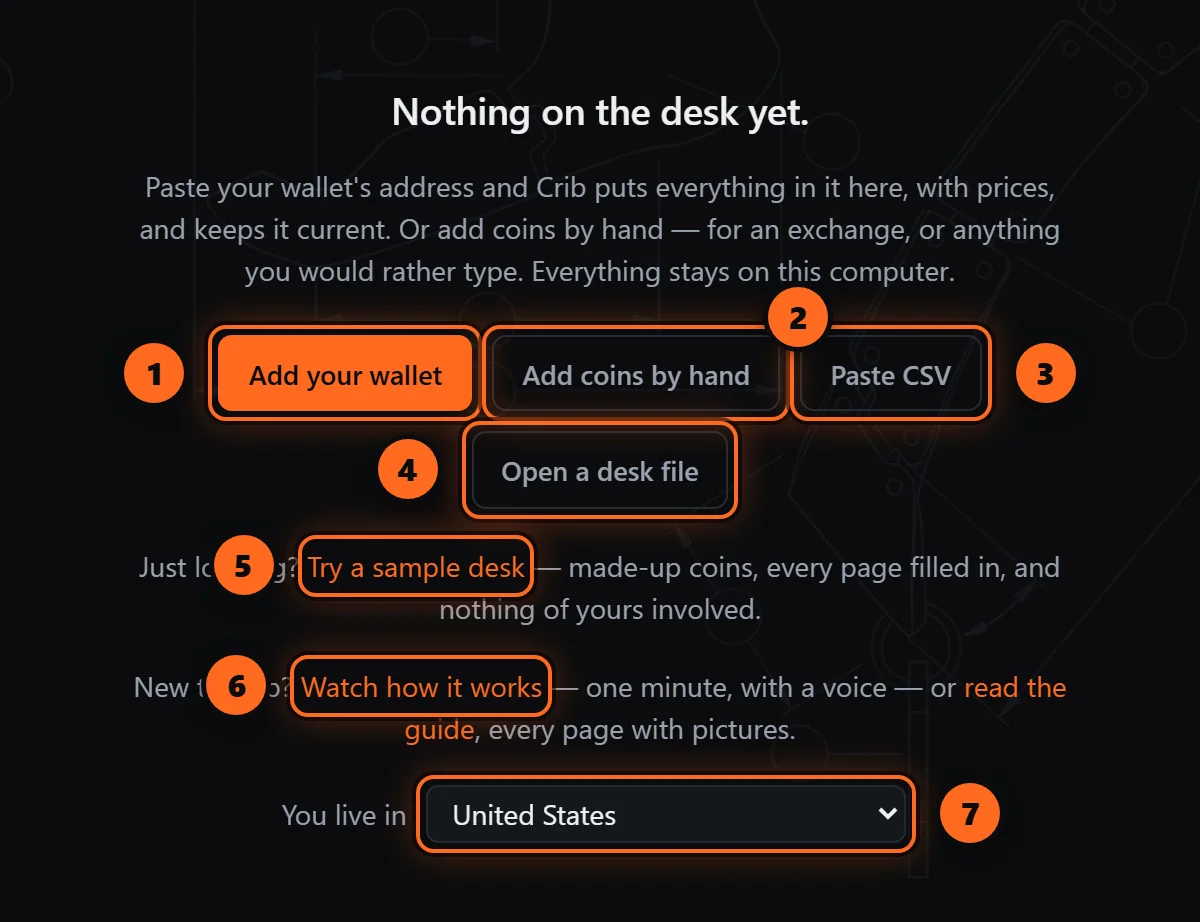
- Add your wallet. The quickest way. Paste your wallet's public address and Crib fills the desk with what is in it. How it works.
- Add coins by hand. For coins on an exchange, or anything you would rather type. How it works.
- Paste CSV. Drop in a Coinbase or Kraken export, or a simple list of your buys. How it works.
- Open a desk file. Already use Crib on another computer? Open the desk file you saved there and everything comes across. How it works.
- Try a sample desk. Just looking? A desk of made-up coins with every page filled in. Nothing you do there touches your own desk, and Leave the sample desk brings you back.
- Watch how it works. A one-minute film of every page, with a voice and captions: the same one at the top of this guide. Every page's help card plays it too.
- You live in. Pick your country. It sets the currency your figures are shown in, and how the Tax page speaks to you. More on this.
Add your wallet
Crib reads a wallet the same way your wallet app does: by asking the public services that run each blockchain what that address holds. It only ever needs the public address, the one you give people to send you coins.
Press Wallets at the top of the desk (or Add your wallet on an empty desk).
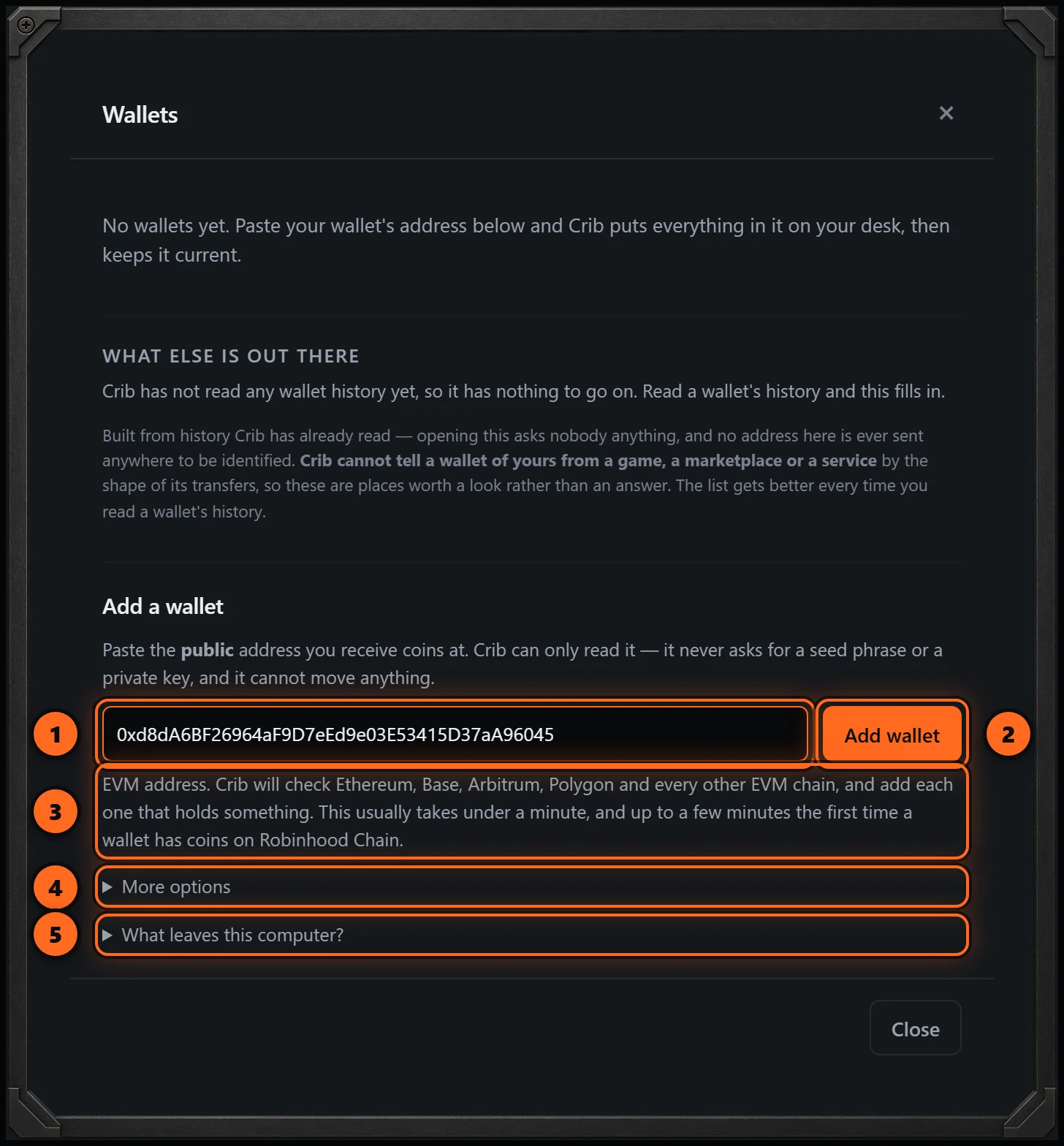
- Paste the address. Copy it from your wallet app's Receive screen. Addresses starting
0x,bc1, Solana, TON, Tron, XRP, Litecoin, Dogecoin, Cardano and Sui all work. - Add wallet starts the read.
- What Crib recognised. As soon as you paste, Crib says which kind of address it is. A
0xaddress is the same address on every EVM chain, so Crib checks Ethereum, Base, Arbitrum, Polygon and the rest, and adds each one that holds something. - More options lets you name the wallet, say where it is kept (a hardware wallet is Cold storage, a phone or browser wallet is Hot wallet) and pick one chain yourself. Every coin found in the wallet is filed in the drawer you choose here.
- What leaves this computer? explains exactly what the read sends, and to whom.
The one question Crib asks first
The very first time you read a wallet, Crib stops and asks before anything is sent:
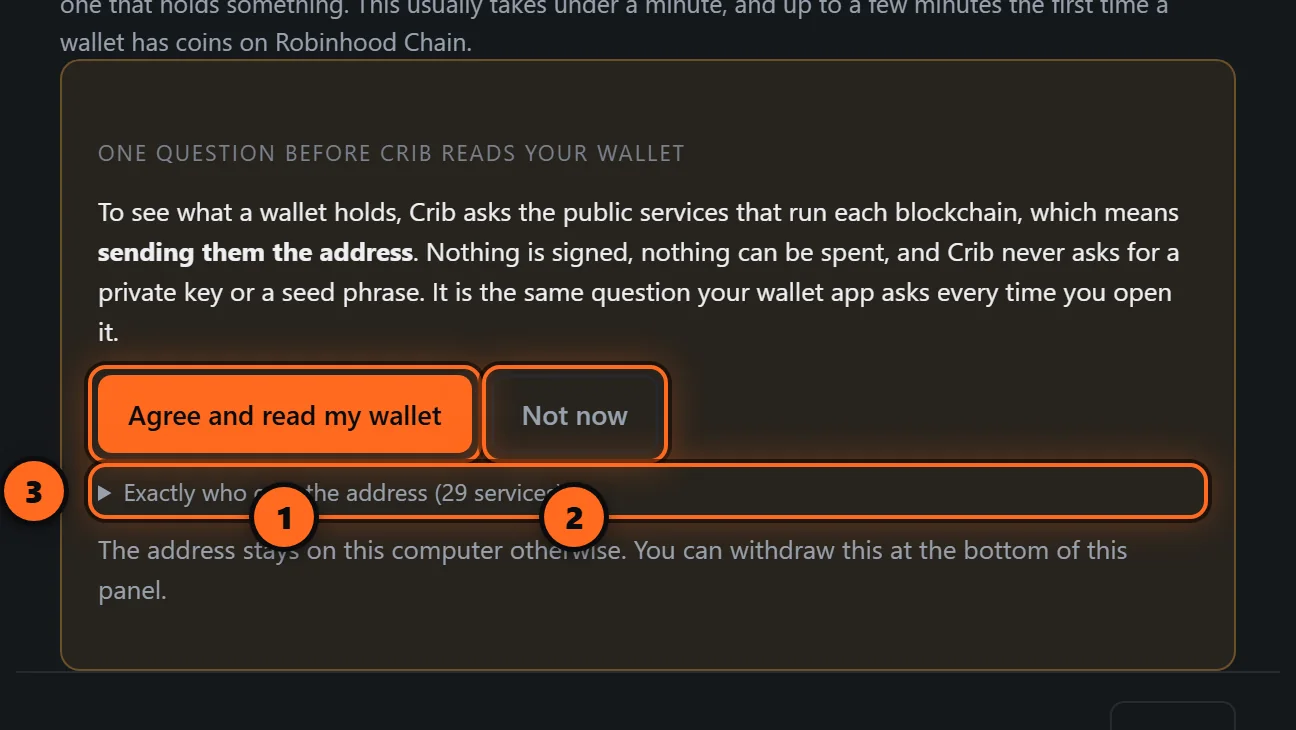
- Agree and read my wallet sends the address to the services that answer for that chain, and reads it.
- Not now sends nothing at all.
- Exactly who gets the address lists every one of those services by name, before you agree.
You are asked once. The answer is shown at the bottom of the Wallets sheet, where you can take it back.
After the read
Every coin in the wallet that has a market to sell into goes straight onto your desk as a card, and Crib says which (Added to your desk: ...). Tokens with no market, which are usually NFTs and junk strangers sent you, and tiny leftover amounts are set aside, not added; open that list to add any of them yourself. From then on the cards stay current: every time the wallet is read again, the quantities follow the chain.
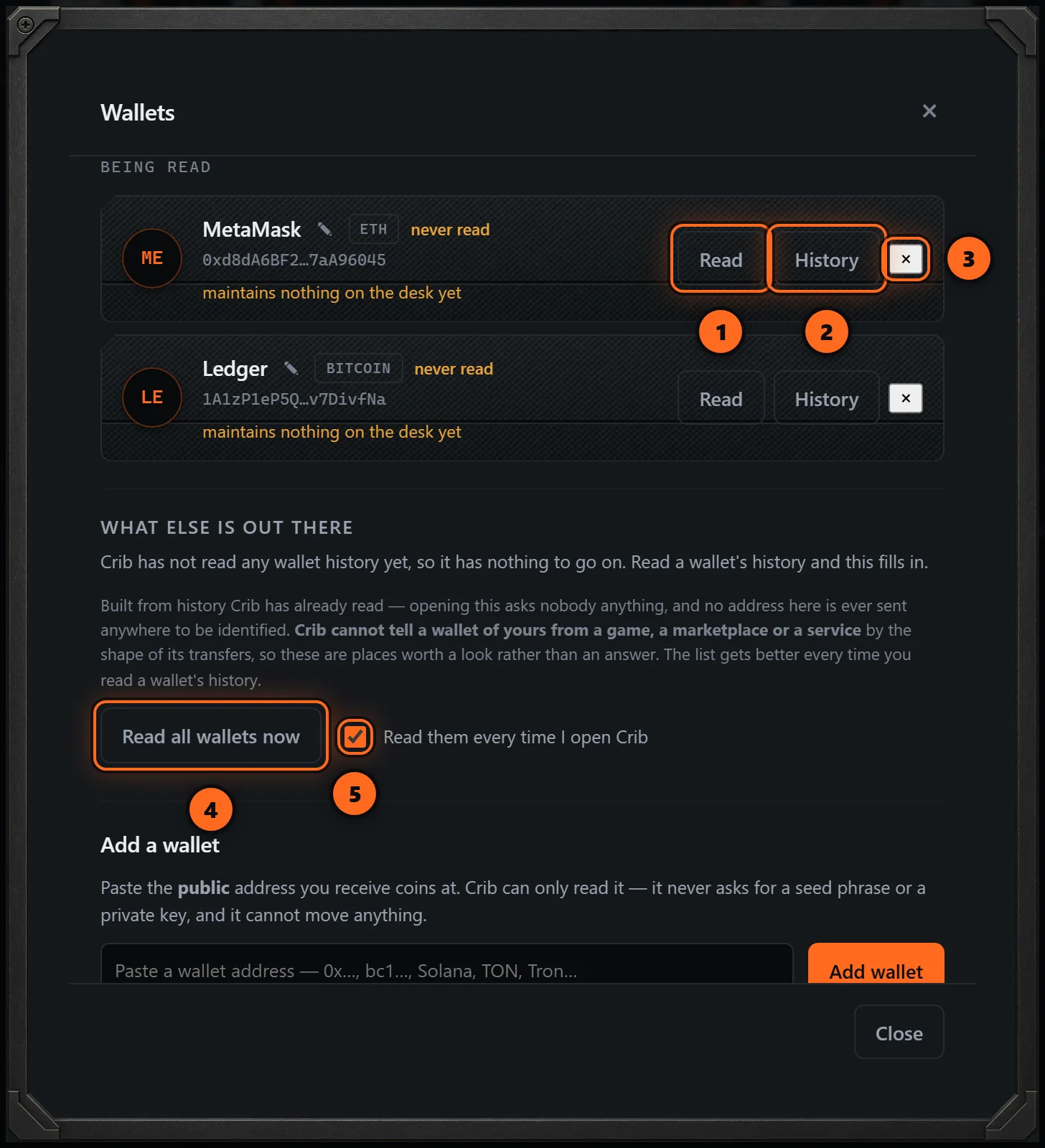
- Read asks that wallet what it holds now.
- History reads the wallet's past transfers and suggests lots: when each coin arrived and what it was worth that day. This is how a wallet's cards get a cost, and a multiple.
- × stops watching the wallet. Its cards stay on your desk, but nothing keeps their quantities current any more.
- Read all wallets now reads every wallet in one go.
- Read them every time I open Crib does that for you when Crib starts. Crib never reads your wallets on a timer.
The pencil beside a wallet's name renames it. The free desk watches one wallet; the full desk watches as many as you like.
What else is out there. Once Crib has read a wallet's history, this part of the Wallets sheet lists other addresses your wallet has sent to or received from often. Crib can't tell your own second wallet from a game or a marketplace by its transfers alone, so treat them as places worth a look, not answers.
Add coins by hand
For coins on an exchange, or anywhere Crib can't read. Press Add holding.
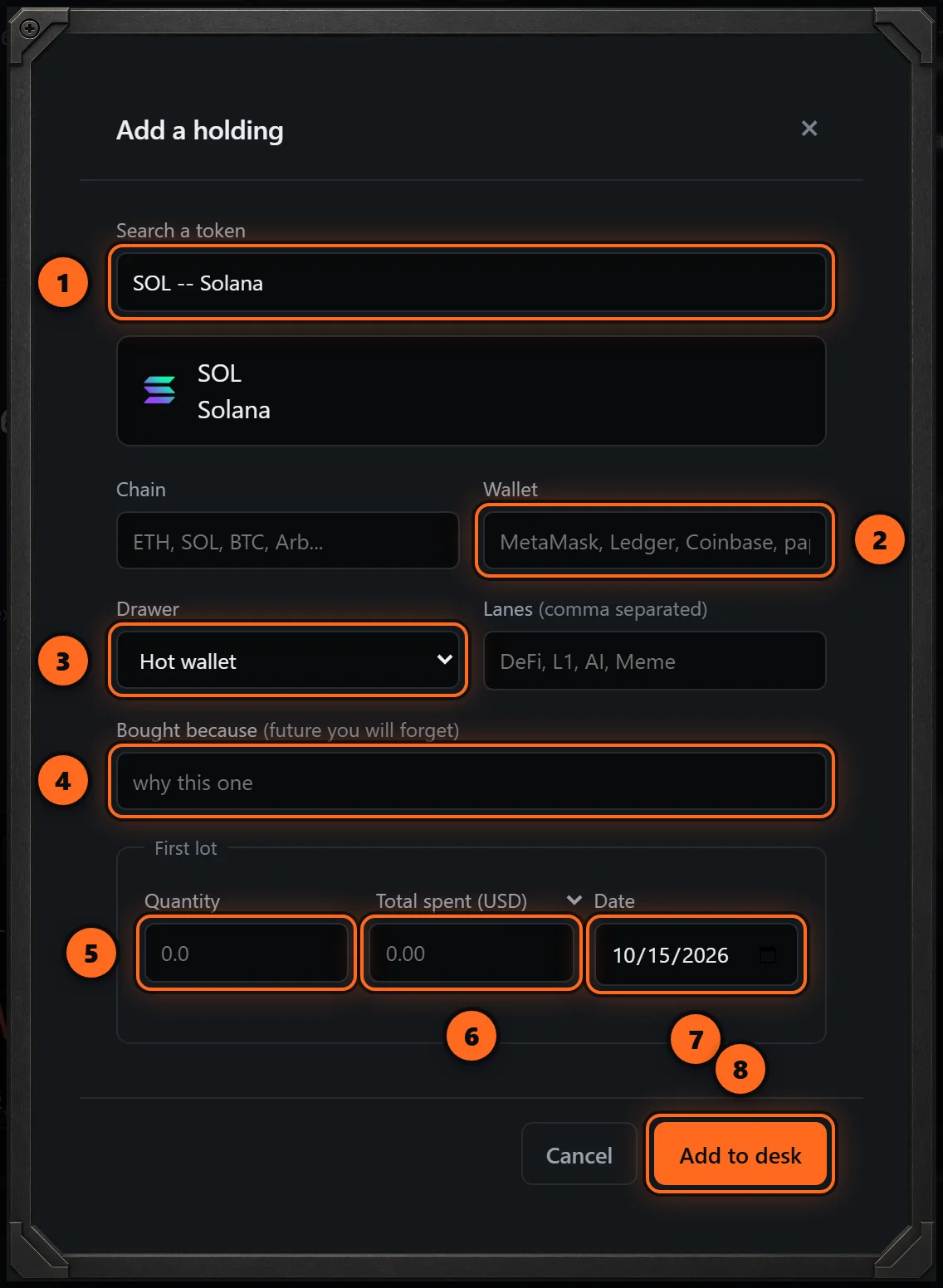
- Search a token by name or symbol, then pick the right one from the list. You can also paste a token's contract address.
- Wallet is where it is kept, in your words: Coinbase, Ledger, paper.
- Drawer files the card: hot wallet, cold storage, paper wallet, on an exchange, or locked up (staked, pooled or vesting).
- Bought because. One line for future you, who will forget. It shows on the back of the card.
- Quantity you bought.
- What you paid. Pick Total spent or Cost per token in the box above it, and Crib works out the other.
- Date you bought it. This decides short-term or long-term for tax.
- Add to desk.
Chain and Lanes are optional. Lanes are your own tags (DeFi, AI, Meme), and the bar at the top of the desk shows how much of the bag sits in each.
A quantity you type stays exactly as typed until you change it. If the coin is in a wallet Crib can read, watch that wallet instead, and the quantity will follow the chain.
Paste or import a CSV
Import CSV at the bottom of the desk (or Paste CSV on an empty desk).
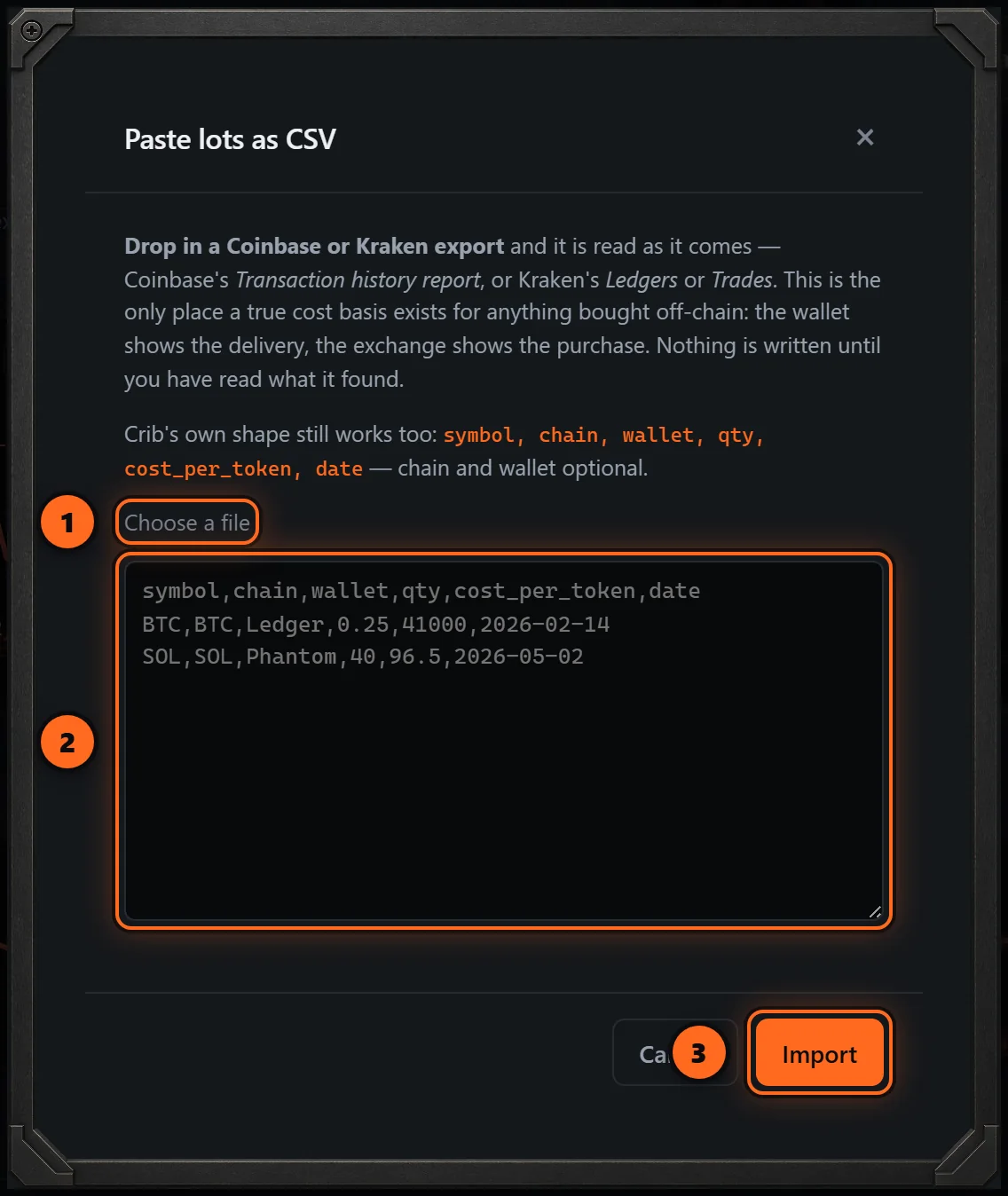
- Choose a file. A Coinbase Transaction history report, or Kraken's Ledgers or Trades export, is read as it comes. For coins bought on an exchange this is the only place the true purchase price exists.
- Or paste lines in Crib's own shape:
symbol, chain, wallet, qty, cost_per_token, date. - Import. Crib shows what it found first, and writes nothing until you have read it.
The desk
Every coin you hold is a card. The biggest three sit on the top row; the rest follow.
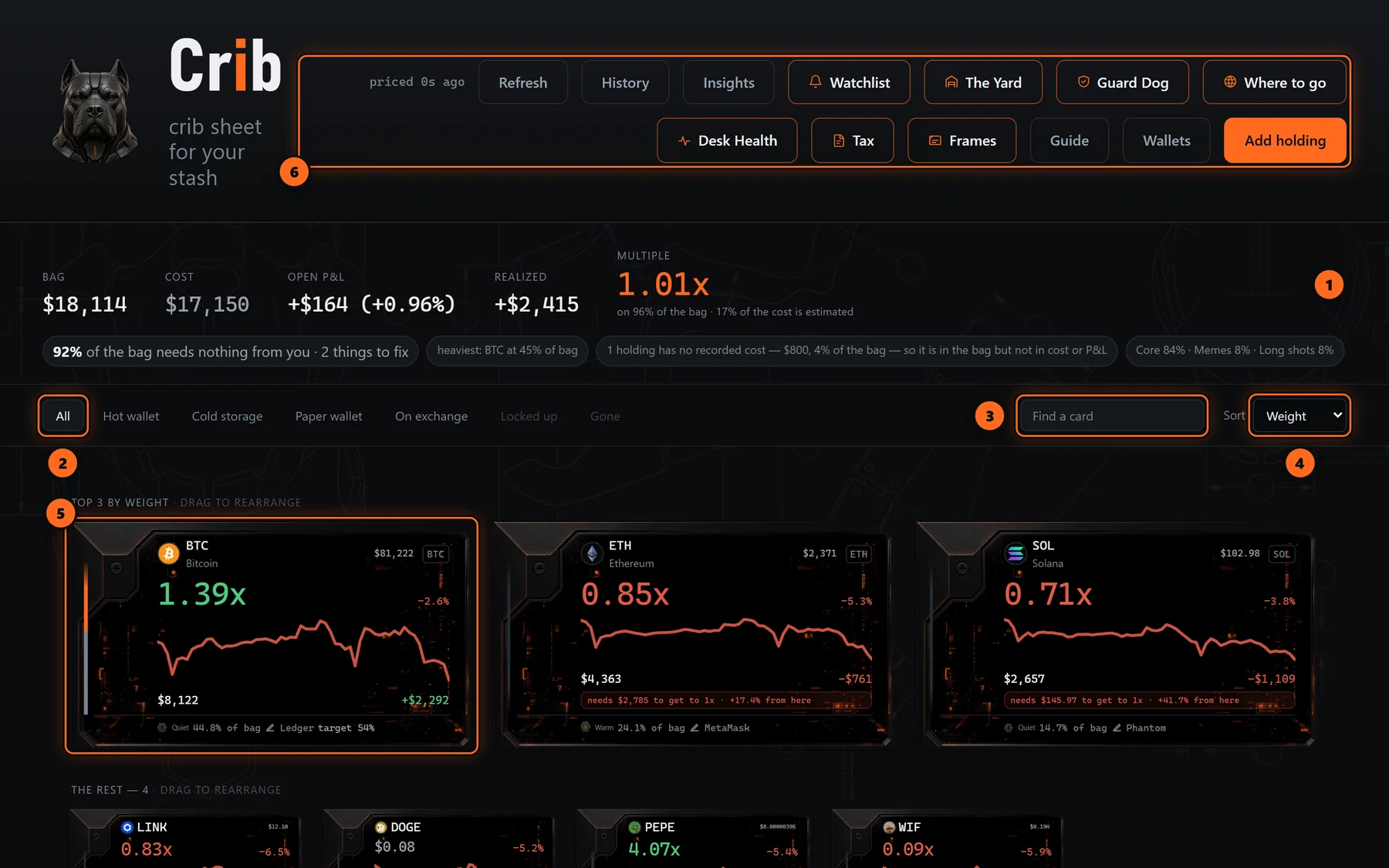
- The bar across the top: what the whole bag is worth and how it is doing. Every figure explained.
- Drawers. Show only the cards kept in one place: hot wallets, cold storage, paper, exchanges, locked up, or Gone (positions you sold or moved away, kept for the record). Hover over a drawer to see what belongs in it.
- Find a card by typing part of its name, symbol, wallet or tag.
- Sort by weight (share of the bag), multiple, profit and loss, the day's move, or days held.
- A card. Click it to turn it over. How to read one.
- The pages. Refresh prices, History, Insights, and the pages this guide covers one by one: Watchlist, The Yard, Guard Dog, Where to go, Desk Health, Tax and Frames. Wallets and Add holding are here too.
Drag a card to move it. The order you leave them in is kept. Prices are fetched when you open Crib and when you press Refresh. The words beside Refresh say how old they are.
The bar across the top

- Bag: what everything on the desk is worth right now.
- Cost: what you paid for what you still hold.
- Open P&L: profit or loss on what you still hold, if you sold it all today.
- Realized: profit or loss already locked in by selling.
- Multiple: the bag's value divided by what it cost.
2.00xmeans it has doubled; under1.00xit is worth less than you paid. The line under it says how much of the bag the figure covers, when that is not all of it. - The notes underneath. The first is Desk Health (click it). Others name your heaviest coin, anything with no recorded cost, a price two sources disagree on, and how the bag splits across your lanes.
Green and red only ever mean profit and loss. Orange is Crib's own colour and never means either.
Reading a card
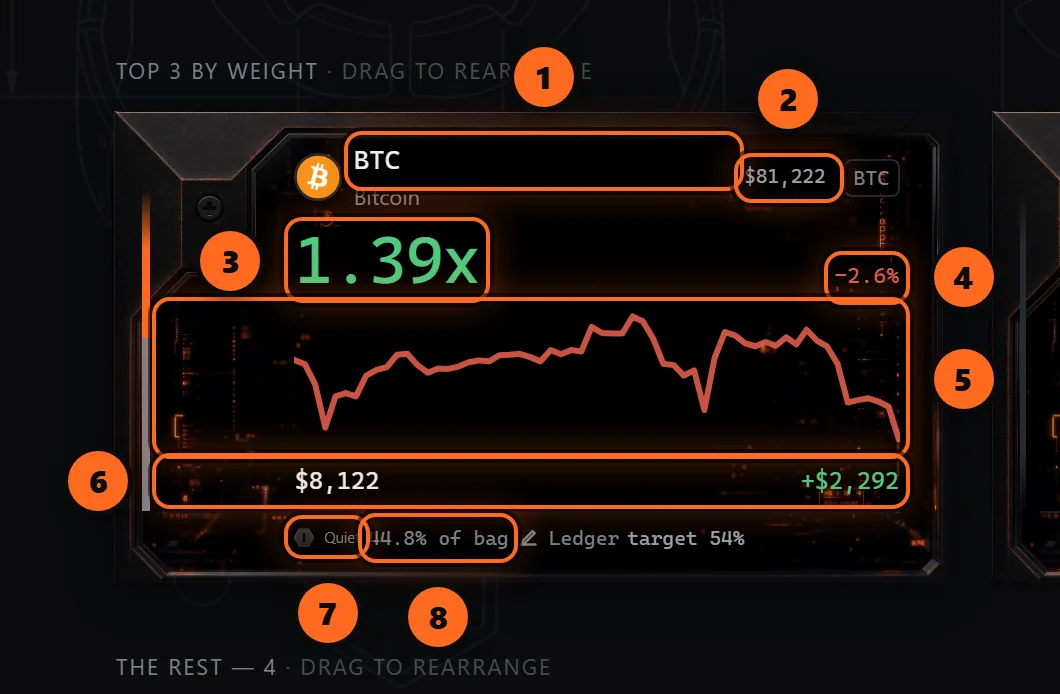
- The coin, its symbol and name.
- Today's price, and the chain it is on.
- The multiple, the loudest number on the card: what it is worth now divided by what you paid. Green above
1x, red below. With no cost recorded, the live price shows here instead. - The day's move, over the last 24 hours.
- The price line for the recent past.
- What it is worth on the left, and your profit or loss on the right.
- Heat: how busy trading in the coin is compared with its own last month. Quiet, Warm, Hot or Crowded. Busy is not the same as good.
- Share of the bag, then the wallet it is in (or how many wallets), how close it is to your target, and badges such as
2x.
A few other lines can appear on a card:
- needs $X to get to 1x: the price at which you would be back to what you paid, and how far away that is.
- no lots yet: Crib knows you hold it but not what you paid. Add a lot, or read the wallet's history.
- price disputed: two price sources disagree badly, so Crib won't put one number on it, and it is left out of the bag's total until they agree.
- vs BTC: how the coin has done against putting the same money into Bitcoin on the same days.
The stripe down the card's left edge is thicker the more of the bag the coin is, and it fills from the bottom as the price nears your target.
The back of a card
Click a card and it turns over.
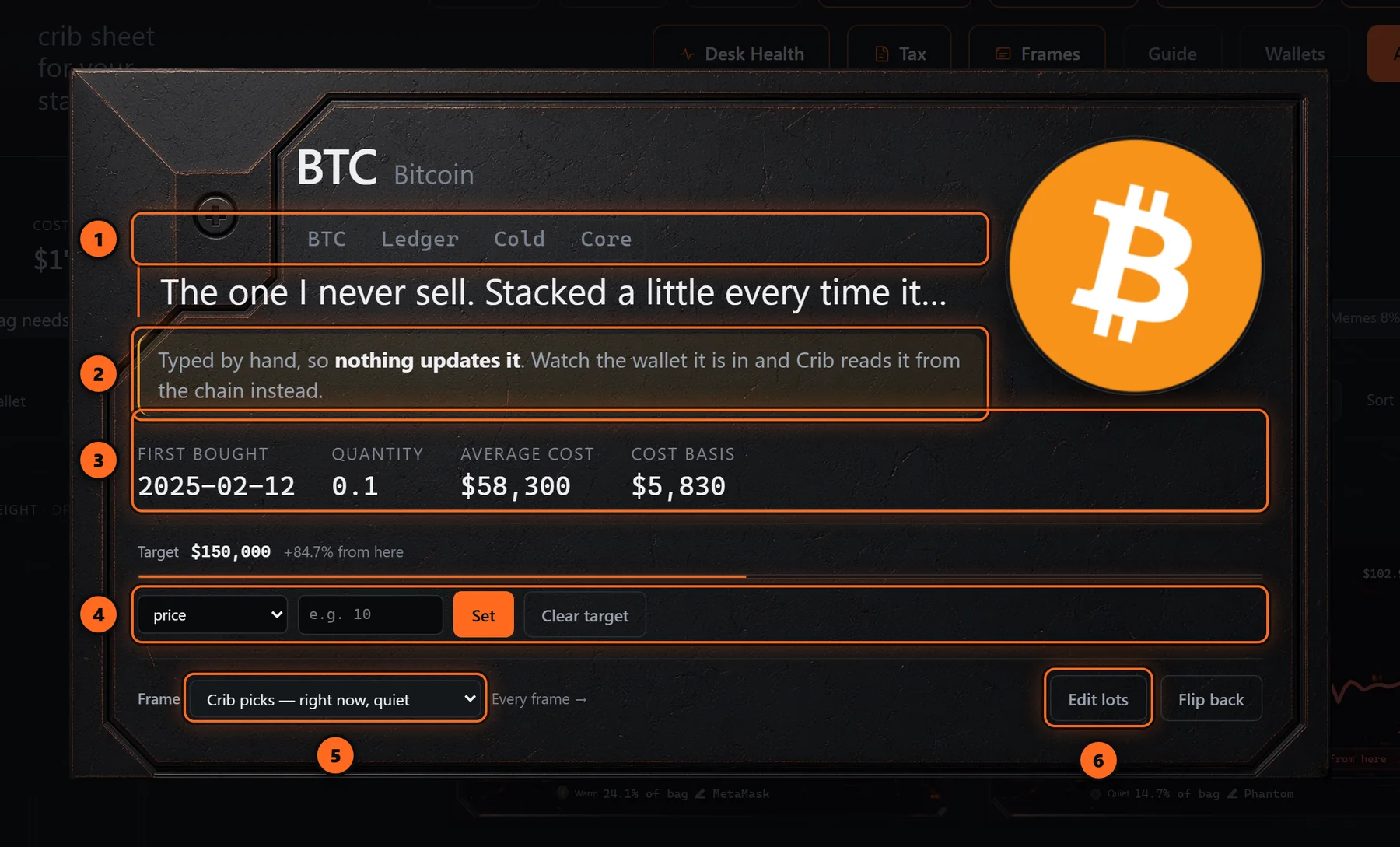
- Its tags: the chain, the wallet, the drawer and your lanes. Under them, your Bought because note, and the story of each buy and sale when there is room for it.
- Where the quantity comes from: read from a wallet, or typed by hand. A typed quantity stays exactly as typed.
- The facts: first bought, quantity, average cost, and cost basis (everything you paid), plus what you've sold and realized, if anything.
- Set a target. Decide now, rather than in the moment, the price you would sell at. Give it as a price, a multiple of cost or a total value, then press Set. The bar shows how close it is; Clear target removes it.
- Frame. Leave it on Crib picks and the card wears a frame that follows what the coin is doing, or pick one frame to keep. Every frame shows them all on this card. About frames.
- Edit lots opens the card in full. Flip back (or Esc) turns it over again.
A card opened in full
Everything about one holding, and every buy and sale behind it.
The top shows the figures: quantity, average cost, live price, multiple, value, cost basis, profit or loss, its share of the bag, days held, heat and drawer. Under them:
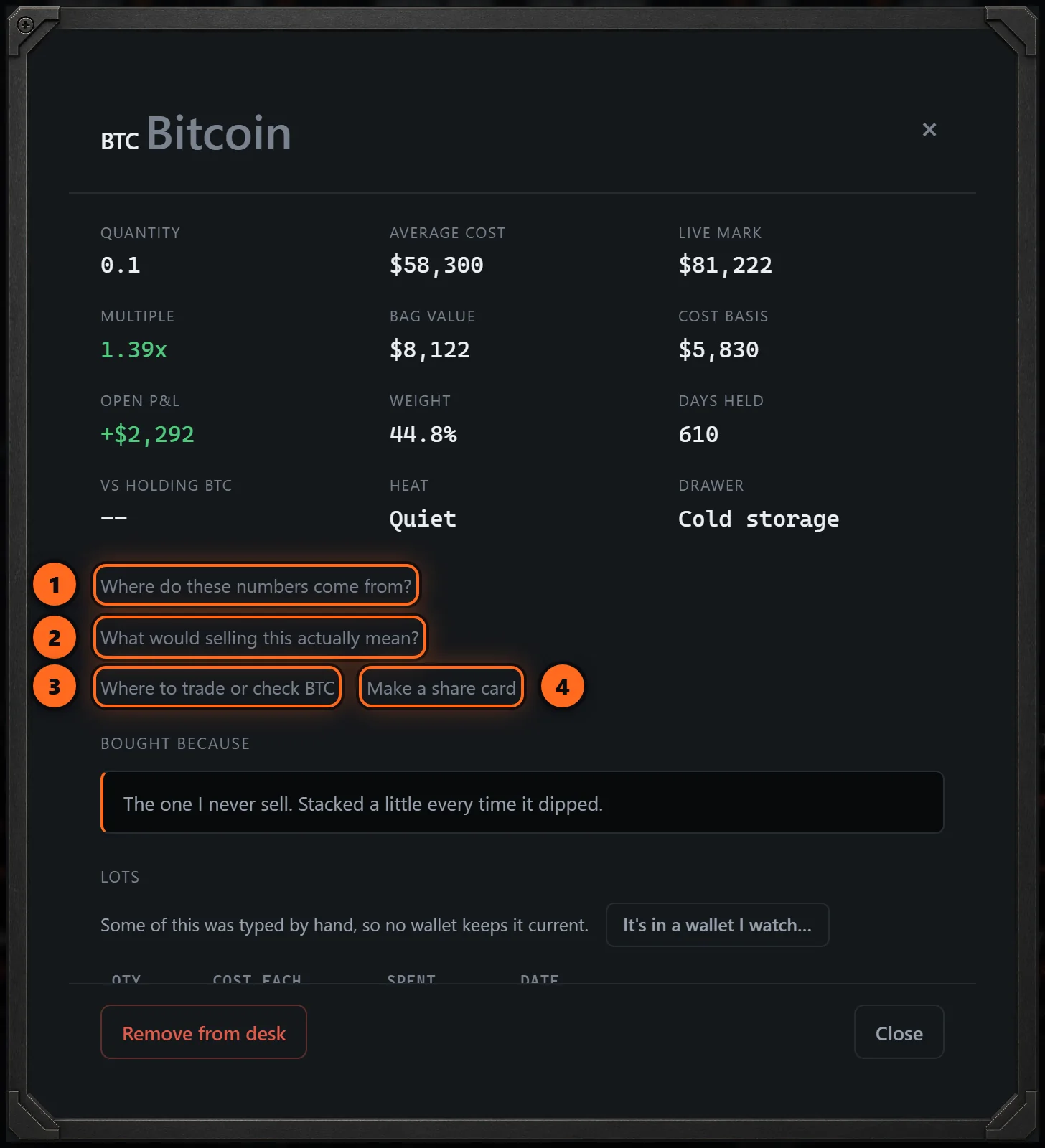
- Where do these numbers come from? Each figure, with what it rests on: a wallet read, a price source, a receipt, or something typed. Anything estimated says so.
- What would selling this actually mean? Before you sell.
- Where to trade or check the coin. Opens Where to go with the real addresses for it.
- Make a share card. A picture of the card to post. It never shows your wallet address or how many coins you hold, and the worth is off unless you tick it. Crib draws it on your computer and saves it to your disk; it is never uploaded.
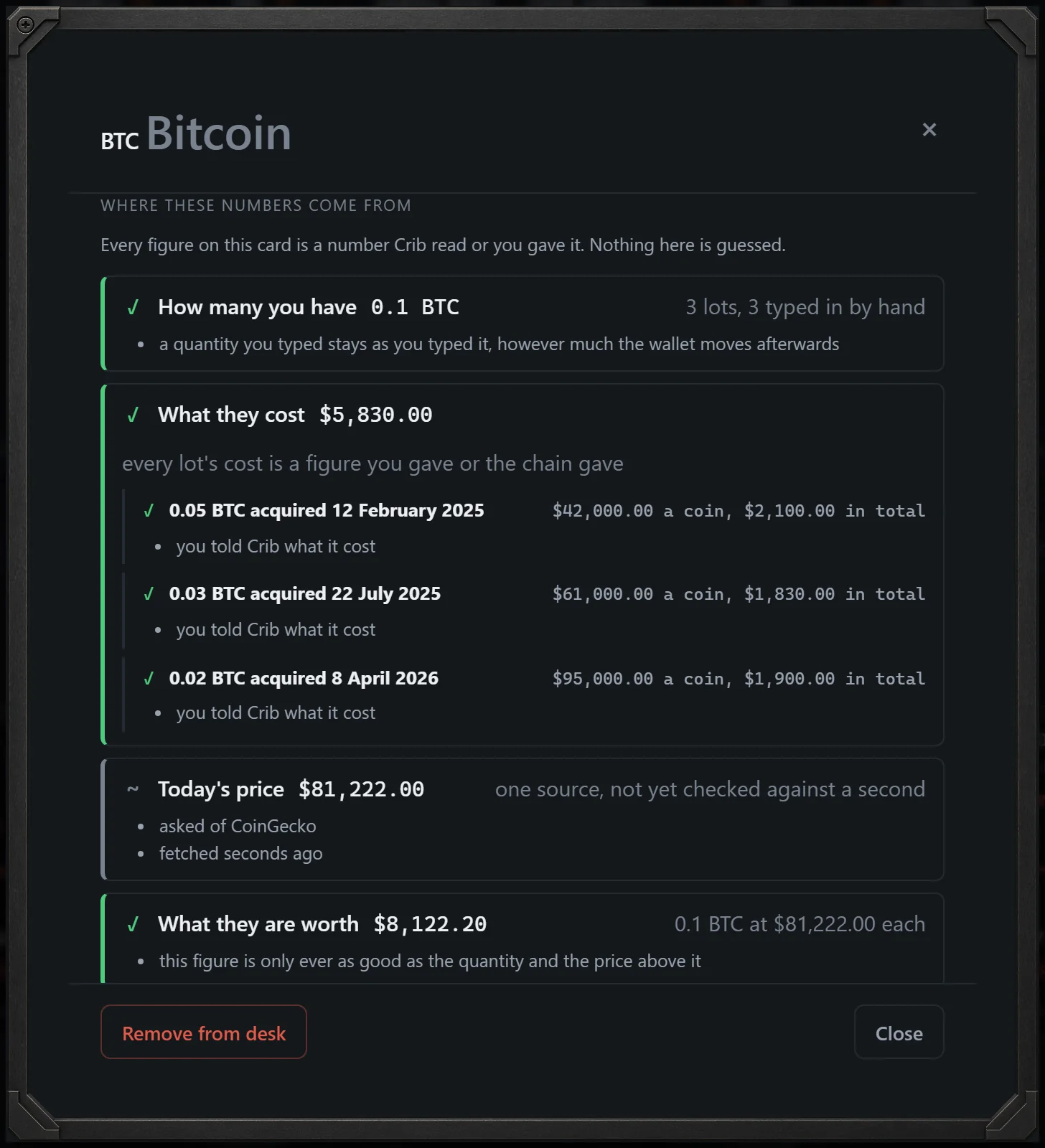
A tick means the figure is something Crib read or you gave it. A ~ means it is weaker
than that, and the line beside it says why (here, a price from one source not yet checked against a
second).
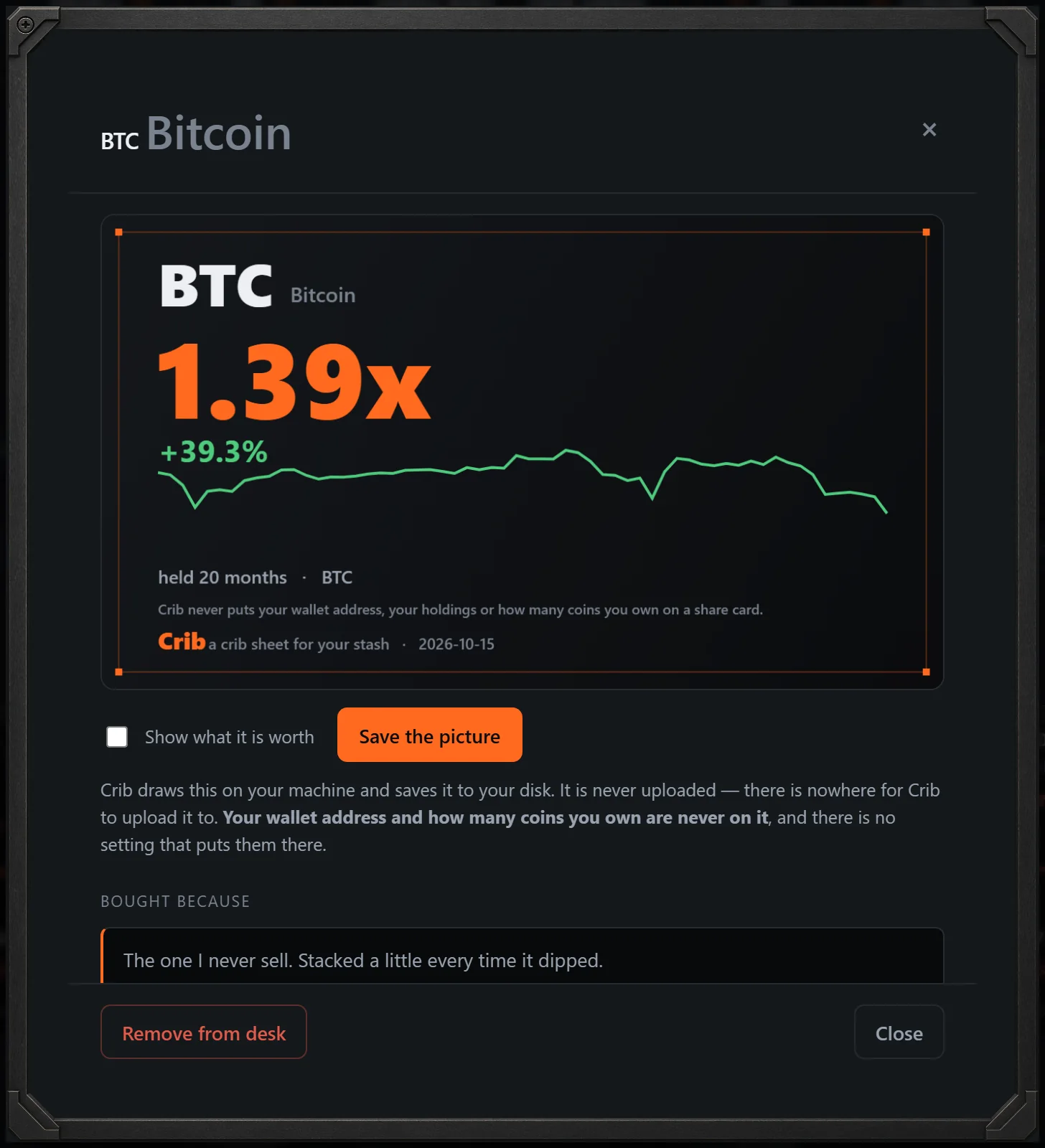
The share card shows the multiple and how long you've held. Tick Show what it is worth to add the dollar figure, then Save the picture.
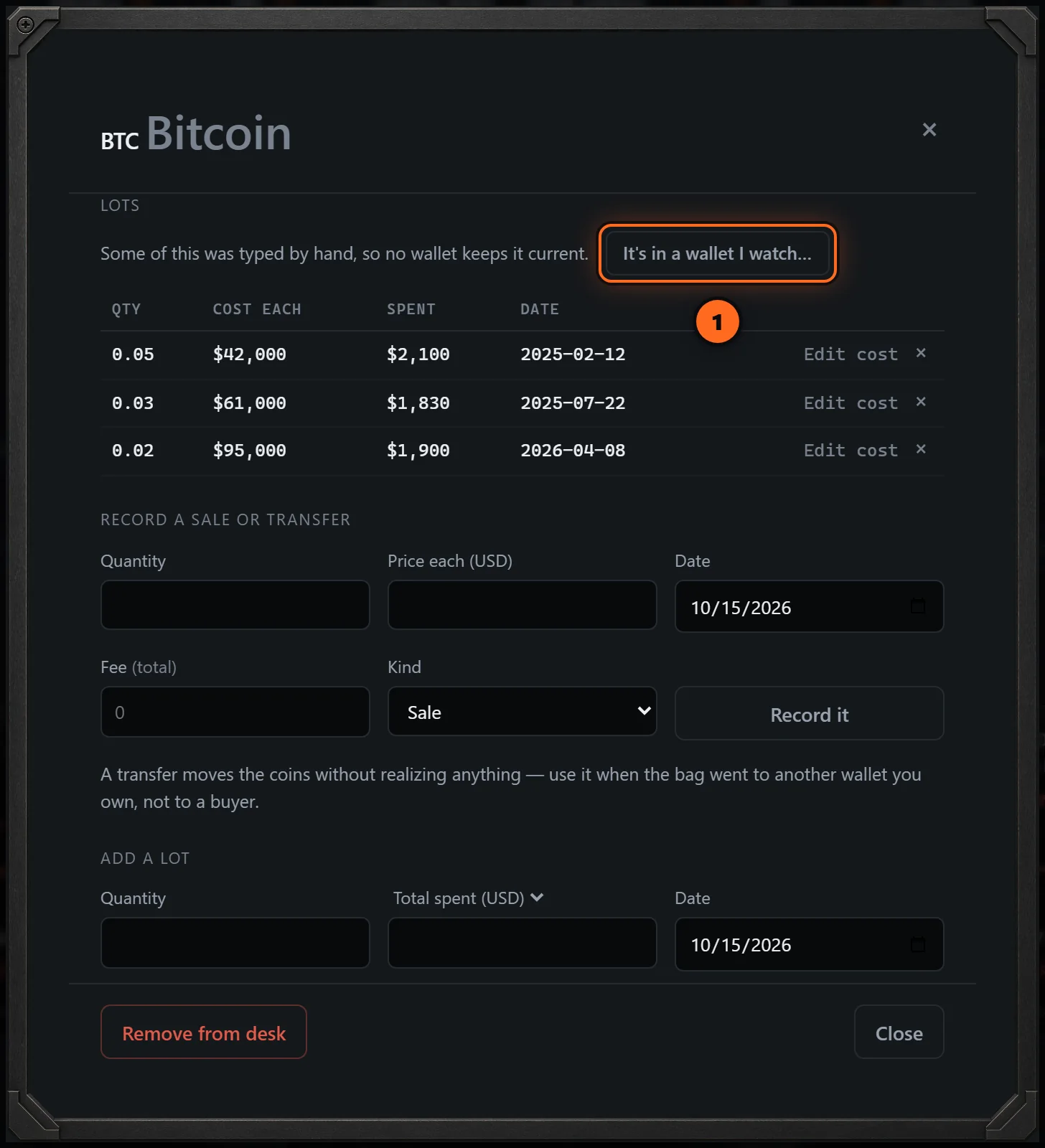
- Lots are your buys, one row each: quantity, cost, what you spent, and the date. Change any of them here. If a coin you typed by hand is really in a wallet Crib watches, It's in a wallet I watch ties it to that wallet so it stays current.
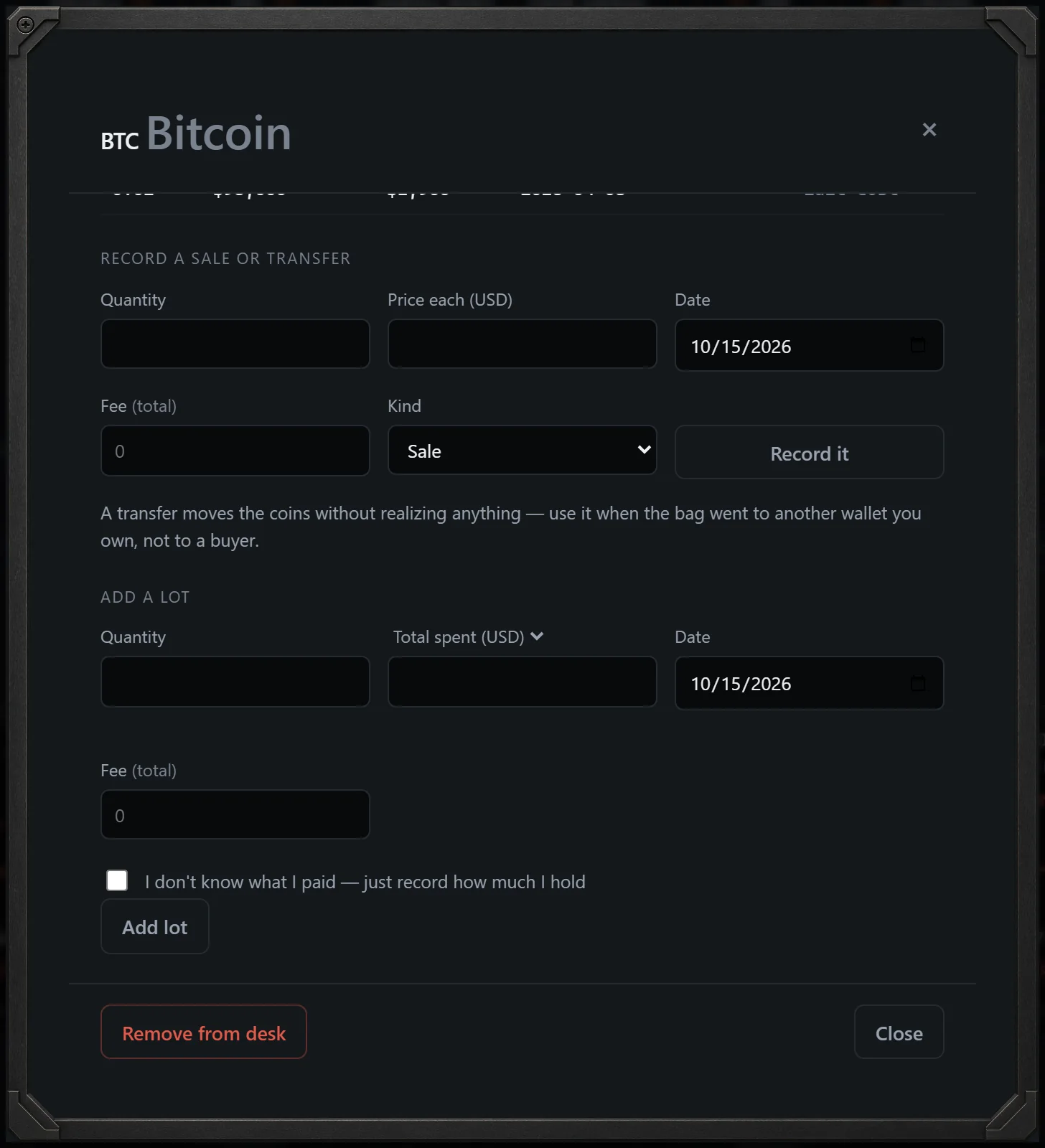
Record a sale or transfer when coins leave: give the quantity, the price each, the date and any fee, and choose Sale or Transfer to another wallet (a transfer is not a sale, so it realizes nothing). Sales are matched against your buys by the method at the bottom of the desk (FIFO unless you change it). Add a lot for another buy. Remove from desk takes the whole holding off.
Before you sell
Press What would selling this actually mean? on an opened card.
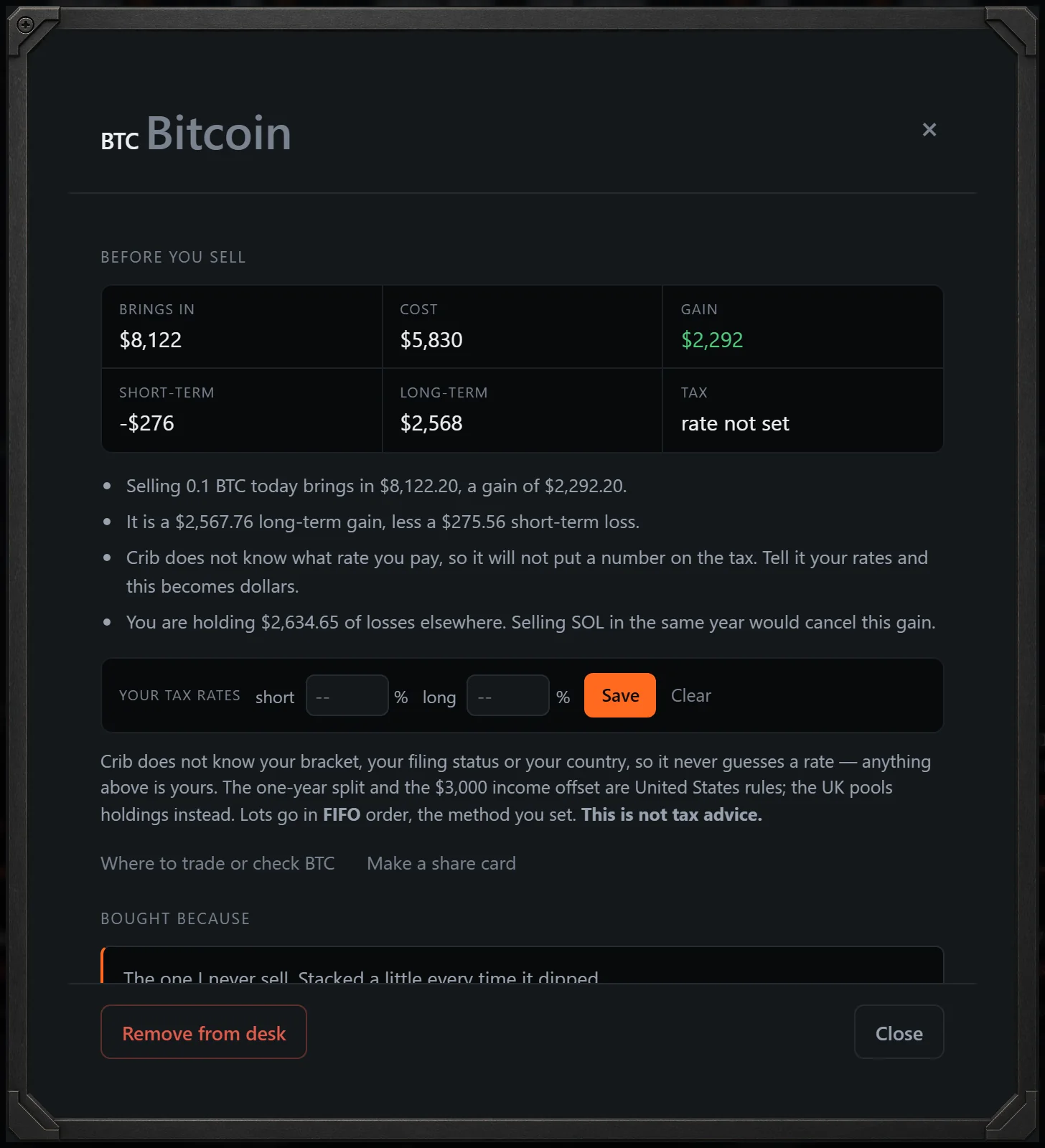
It works out selling the whole holding today: what it brings in, what it cost, and the gain or loss, split into short-term (held a year or less) and long-term. If waiting a few days would turn part of the gain long-term, it says how many days and how much. It also points out losses elsewhere on your desk that could offset the gain in the same year.
Crib doesn't know your tax rate, so it never guesses one. Type your own rates into Your tax rates and the tax becomes a dollar figure. This is not tax advice.
History and Insights
What the desk has been worth
Press History at the top.
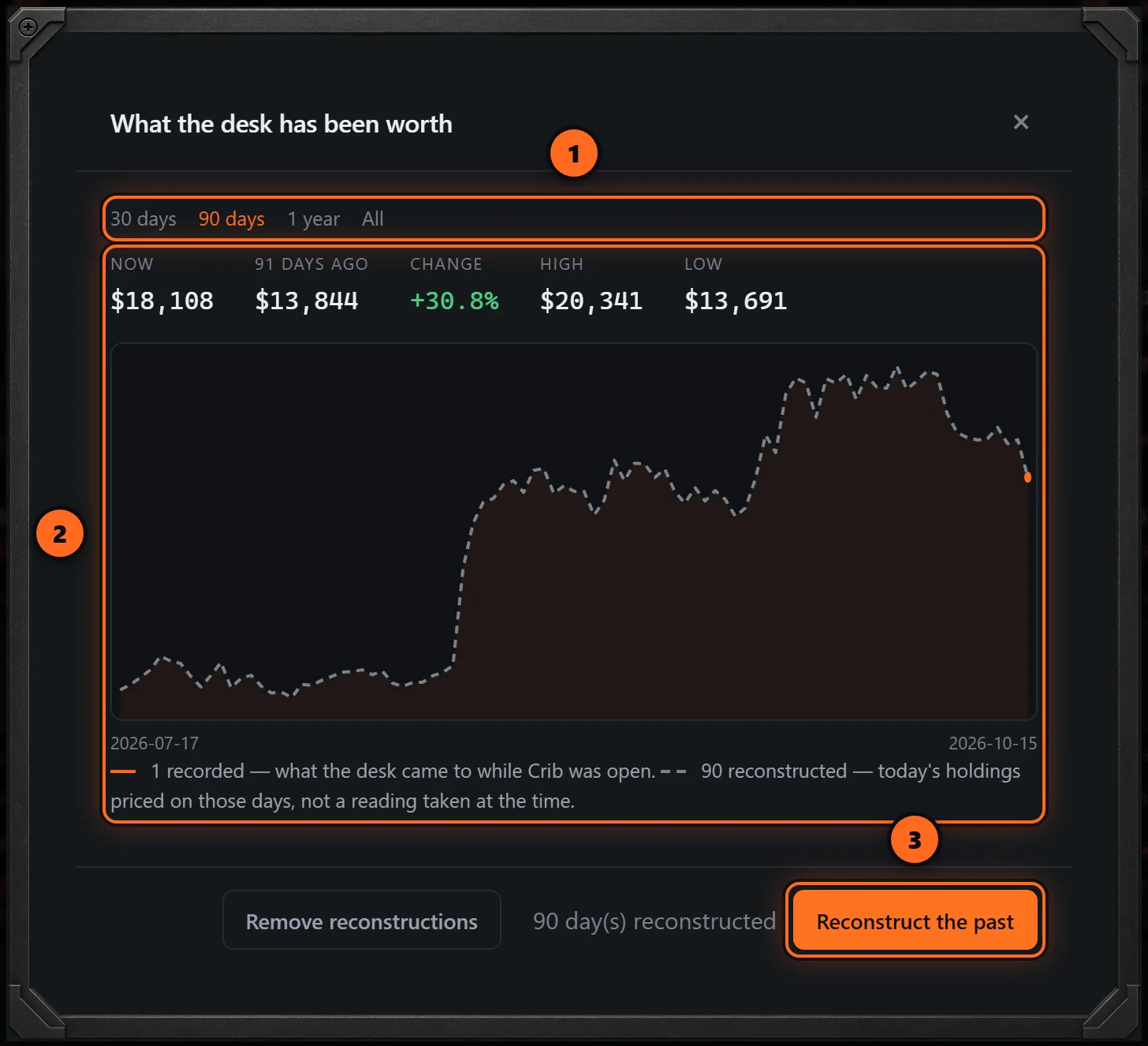
- Pick a range: 30 days, 90 days, a year, or everything.
- The chart. A solid line is what the desk actually came to while Crib was open. The figures above it are now, the start of the range, the change, the high and the low.
- Reconstruct the past fills in days before you started using Crib. It prices today's holdings on those days, so it is drawn dashed and labelled as a reconstruction, never as a reading taken at the time. Remove reconstructions takes them away again.
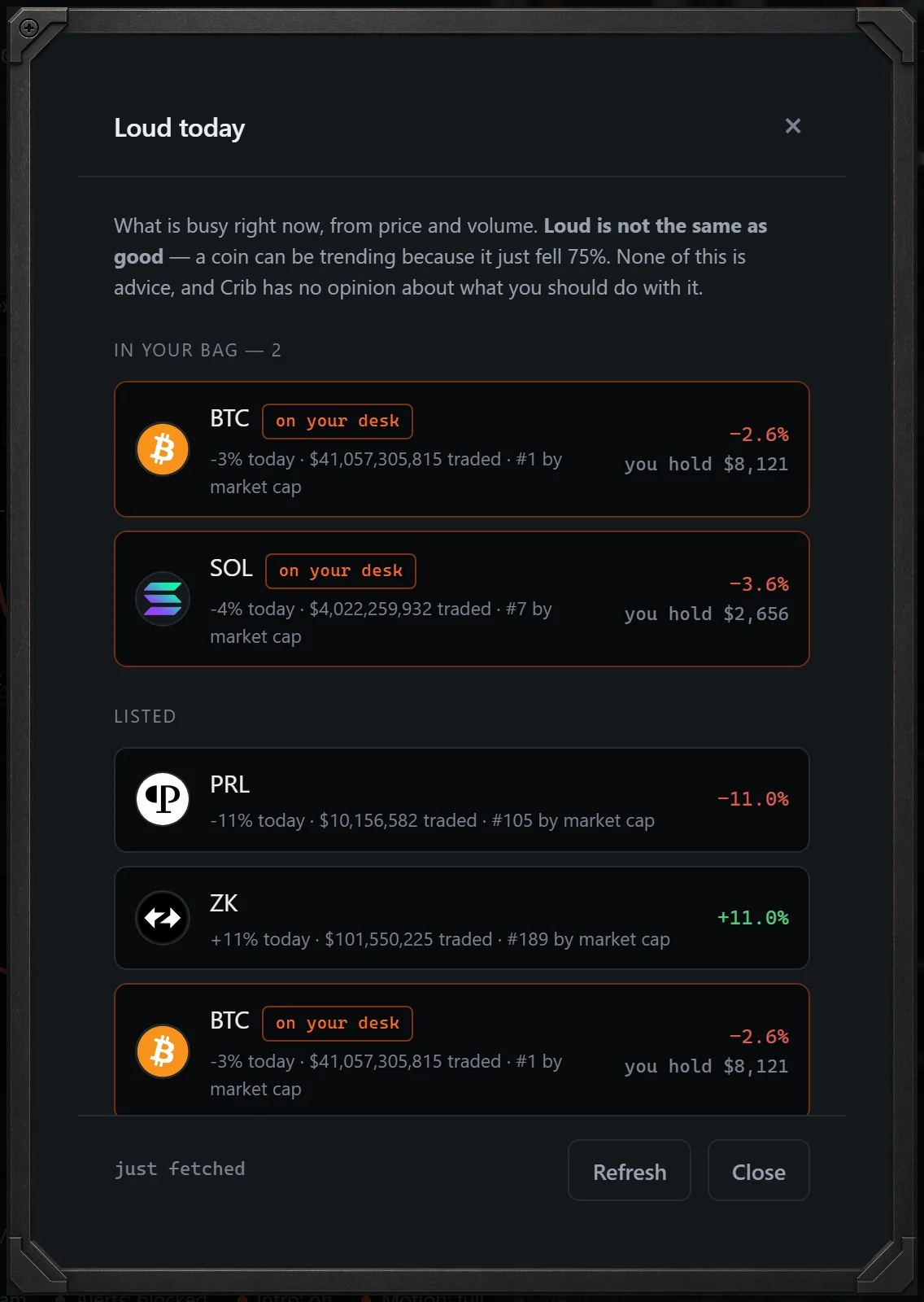
Loud today
Insights shows what is busy in the market right now, from price and volume. Loud is not the same as good: a coin can be trending because it just fell hard. None of it is advice.
Watchlist
Everything you are waiting on, owned or not: the price you'd buy at, or the price you'd sell at.
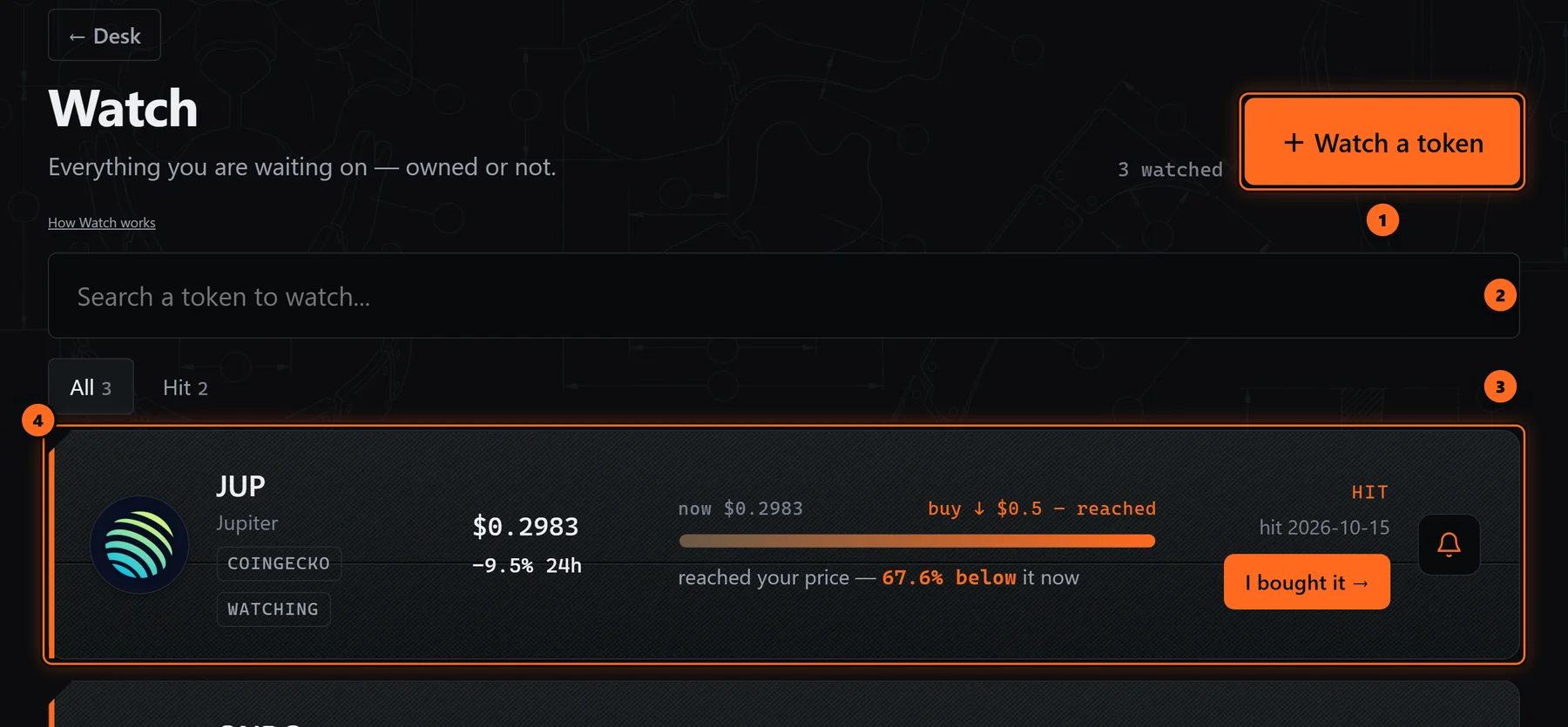
- Watch a token. Search for it, then choose Tell me when it falls to or Tell me when it rises to and the price.
- Search box for finding a token to watch.
- All or only the ones that have Hit your price.
- A watched token. The bar shows how close it is. When it gets there it is marked HIT with the day. I bought it opens Add a holding with the token already searched, and the bell turns alerts for it on or off.
The number on the Watchlist button at the top of the desk is how many have hit. Prices are checked when you open Crib, never on a timer (unless you ask Telegram to tell you the moment a target is reached). The free desk watches three tokens; the full desk, as many as you like.
The Yard
Your NFTs and game items: everything in your wallets that isn't a coin.
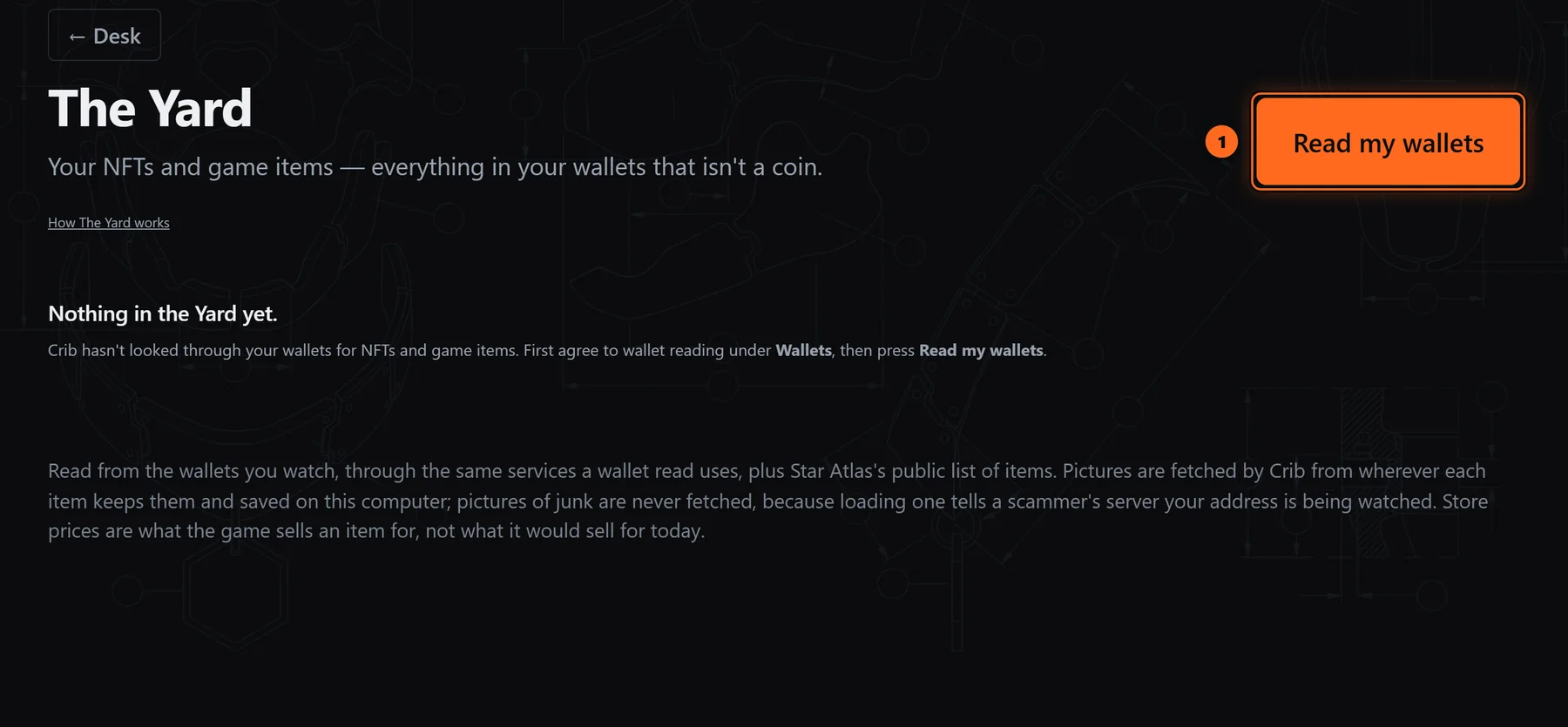
- Read my wallets looks through the wallets you watch for NFTs and game items (after you have agreed to wallet reading once, under Wallets).
Items are grouped by collection or game, with rarity and counts, and store prices where a game sells the item. Junk that strangers airdropped to you is set aside, and its pictures are never loaded, because loading one tells the scammer's server your address is being watched. Real items' pictures are fetched once and kept on your computer.
Guard Dog
When you use an app with your wallet, you usually sign a permission for it to move a token. Most ask for an unlimited one that never expires. Guard Dog finds them, and tells you which could still take something today.
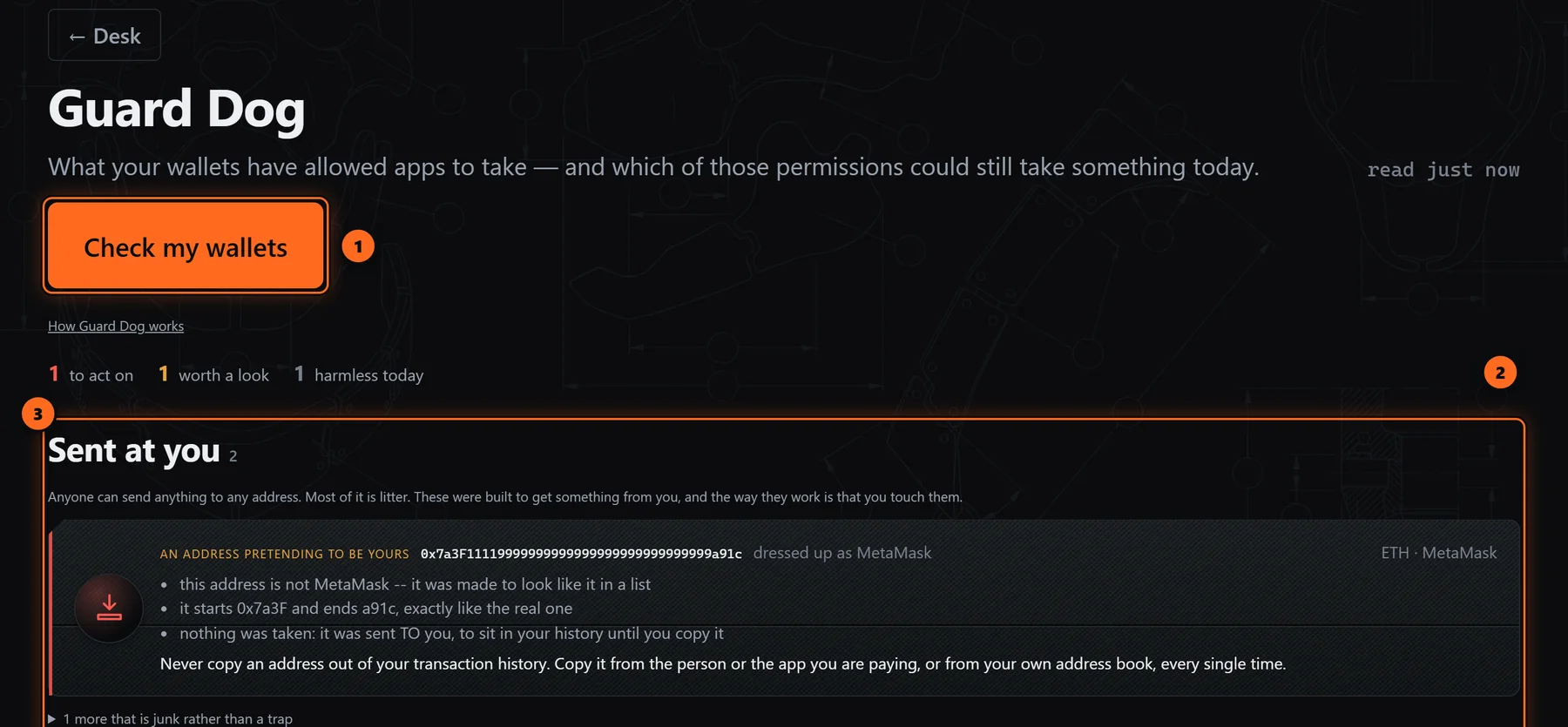
- Check my wallets reads the permissions your watched wallets have given.
- The count: how many to act on, how many are worth a look, and how many are harmless today.
- Sent at you. Things strangers sent to your wallet hoping you'll touch them, such as an address made to look like one of yours so you copy it by mistake. Found when a wallet's history is read.
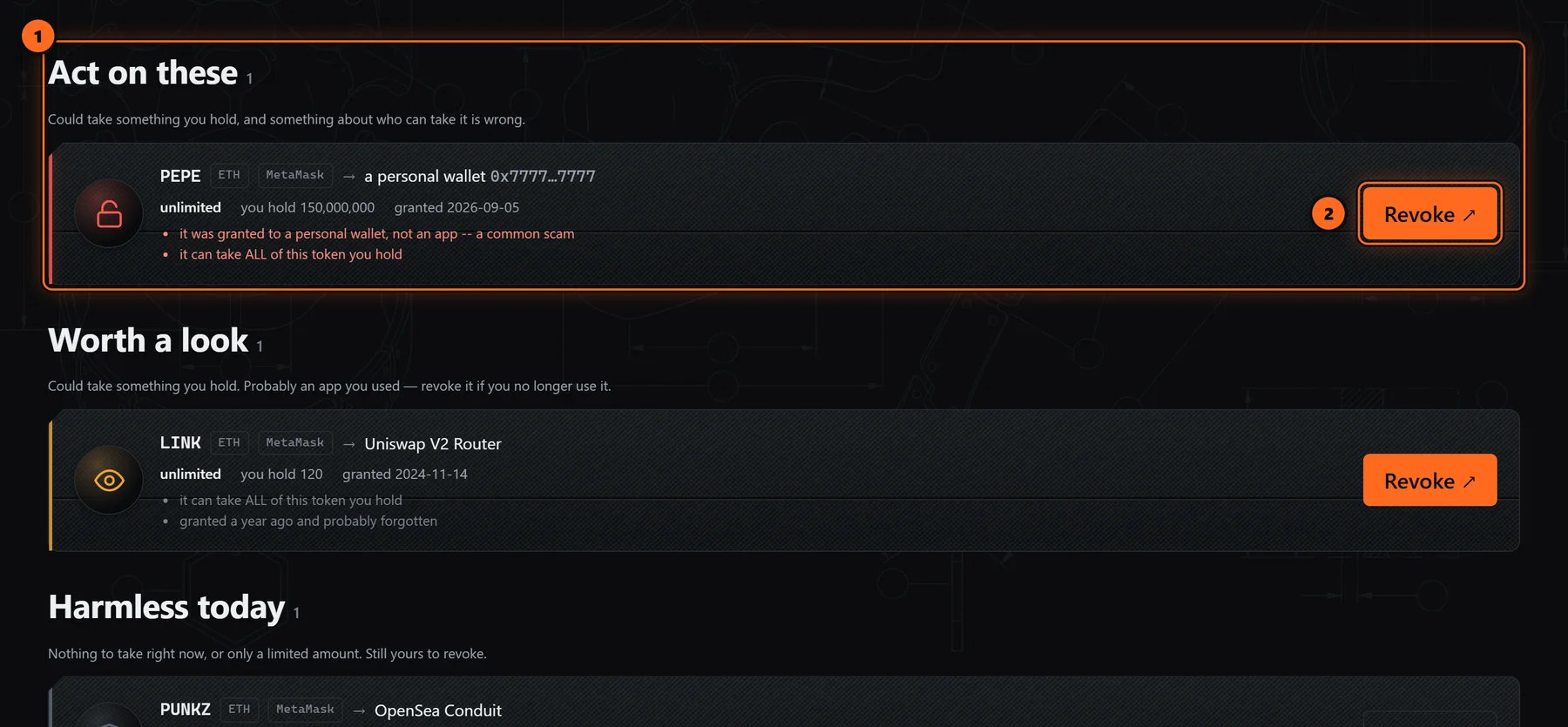
- Each permission: which token, from which wallet, to whom, how much it allows, and when it was granted, with the reasons it matters.
- Revoke opens revoke.cash, where you cancel the permission with your own wallet. It costs a small network fee. Crib cannot revoke anything itself: it holds no keys and signs nothing.
What revoking can't do. It doesn't bring back anything already taken. It can't cancel a permission you signed that nobody has used yet (those live off the chain, where no checker can see them). And if your recovery words or private key were ever exposed, revoking doesn't help: move what's left to a new wallet instead.
Where to go
The real addresses of wallets, exchanges and tools, checked by hand and shipped inside Crib, and a way to test any link before you click it.
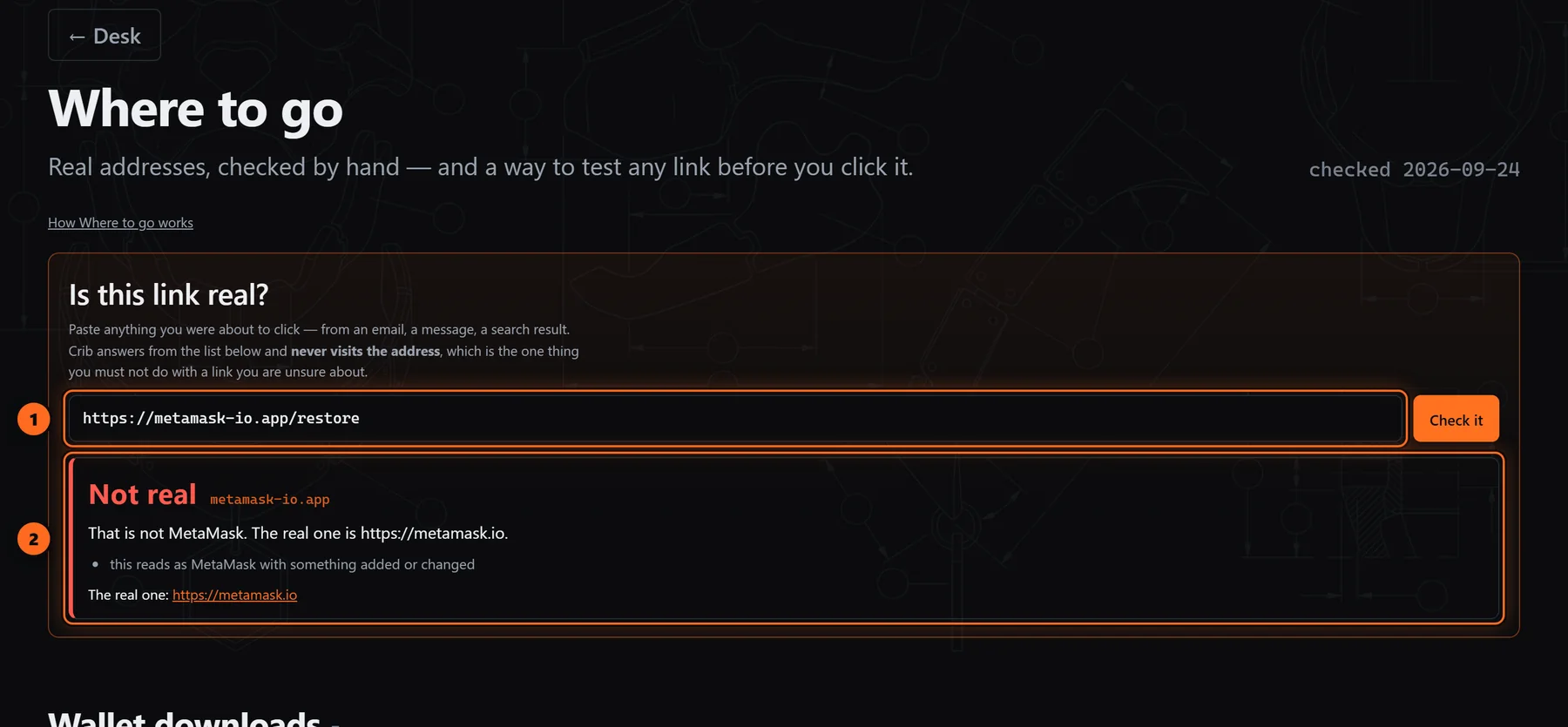
- Paste any link you were about to click, from an email, a message or a search result, and press Check it.
- The answer. Crib answers from its own list and never visits the address. A look-alike is called out, with the real one beside it.
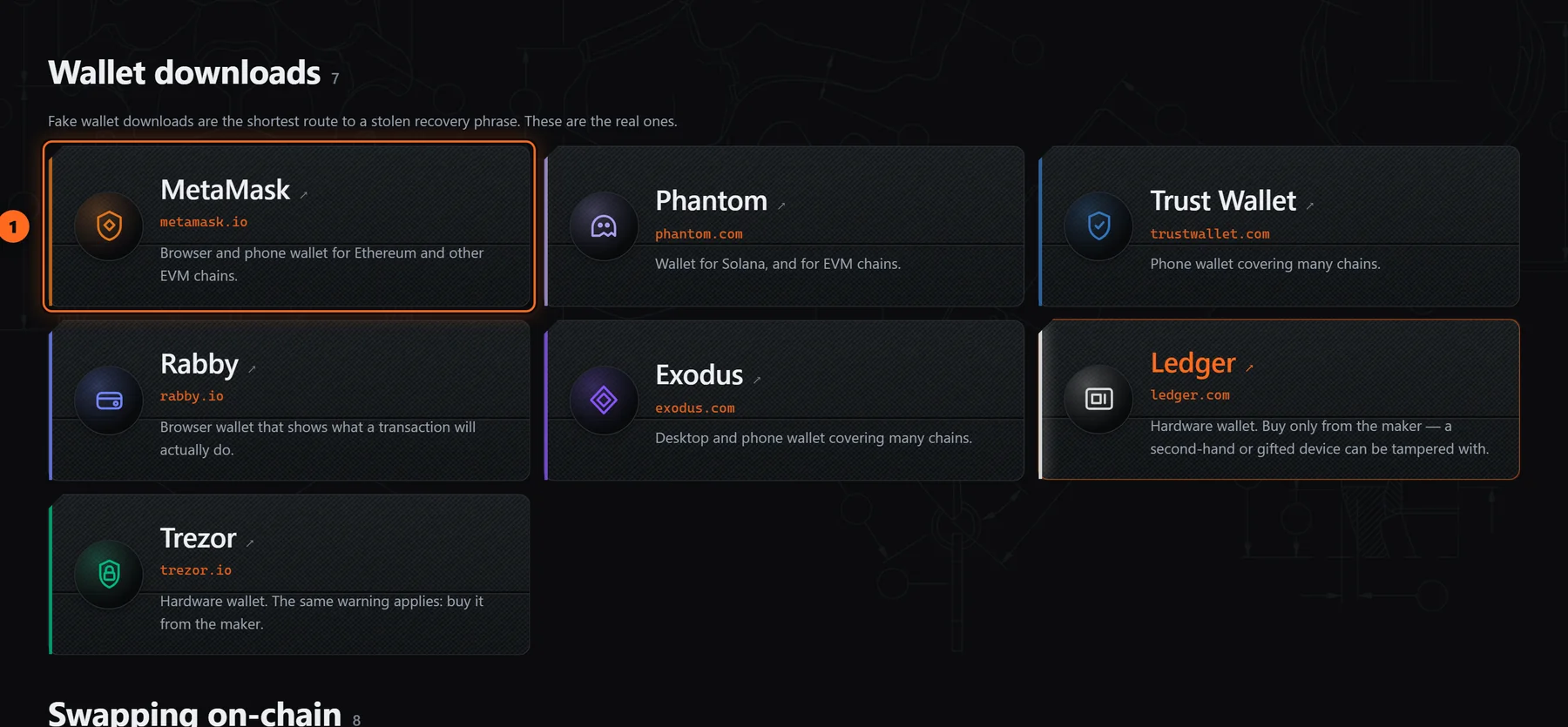
- The list, grouped: wallet downloads, exchanges, and more. Open sites from here rather than from a search engine, whose top result is sometimes a paid fake.
This page contacts nobody, so nothing can tamper with it between you and the site.
Desk Health
How much of your desk rests on figures that need nothing from you, and the shortest way to more.
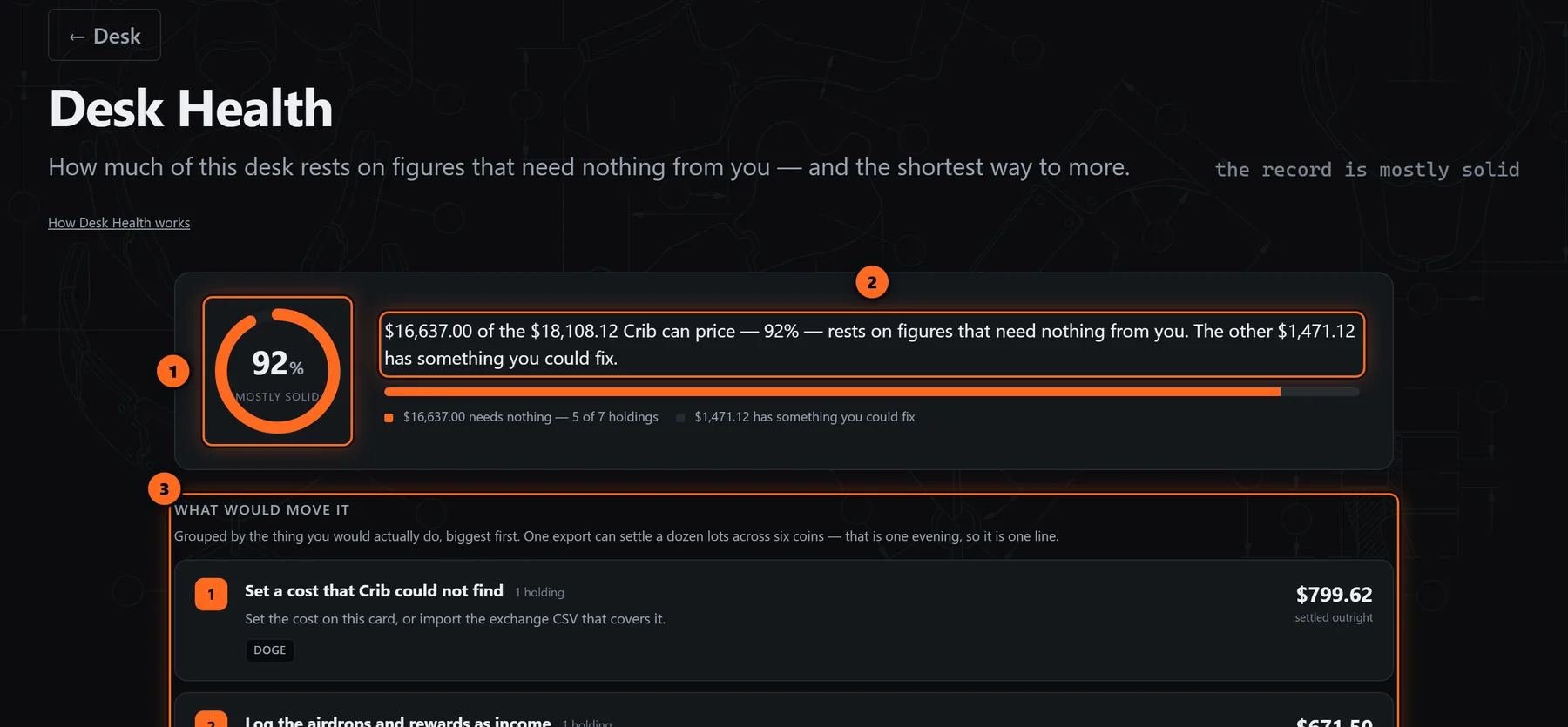
- The dial: the share of the bag's value whose figures need nothing more from you.
- In words: how many dollars are solid, and how many have something you could fix.
- What would move it, biggest first, grouped by the thing you would actually do. One exchange export can settle a dozen lots, so it is one line.
Further down: holdings that couldn't be weighed at all (no price), jobs waiting on Crib rather than on you, and every holding from worst to best. Click the Desk Health note on the bar across the top of the desk to come here.
Frames
Frames dress your cards. Some are still, some move, and by default each card wears the one that fits what its coin is doing, like fire when it is running hot.
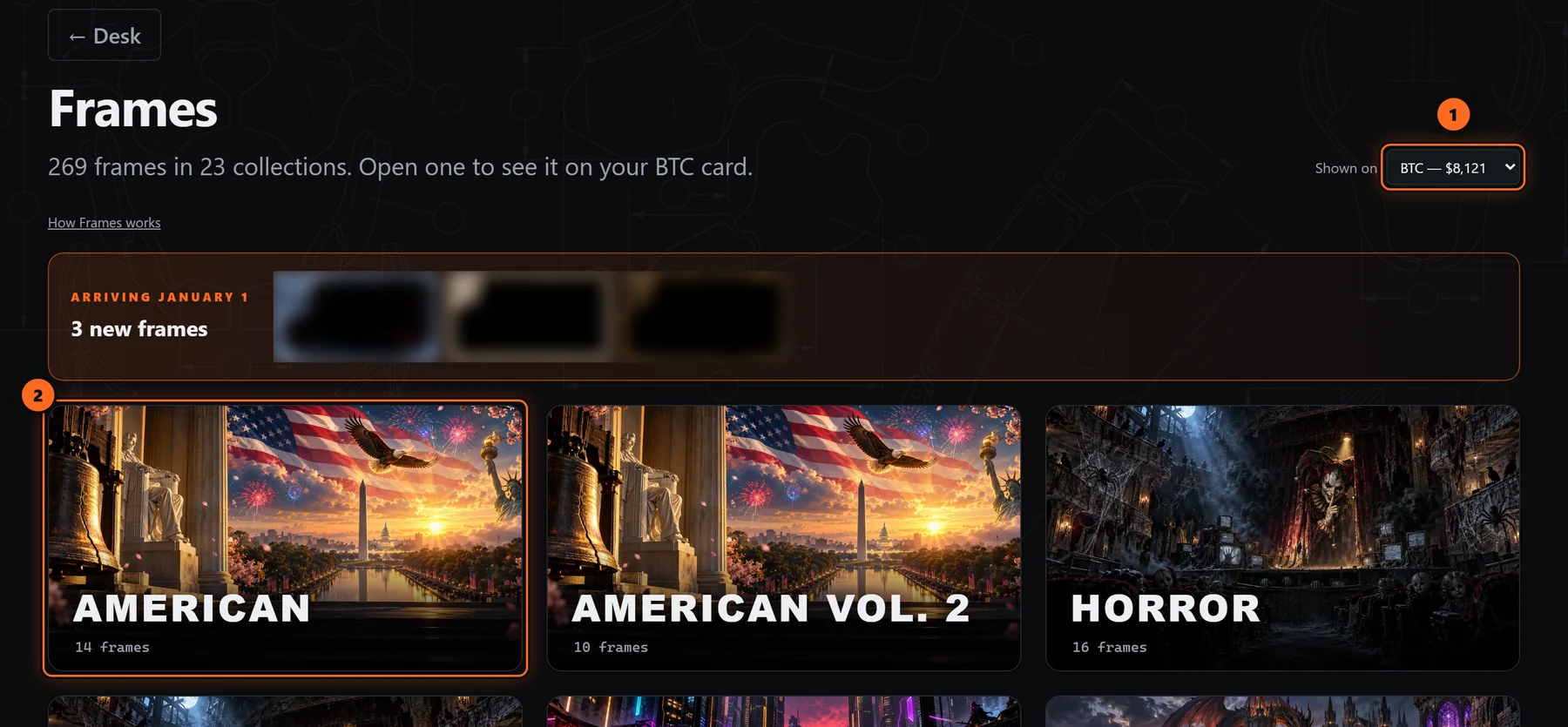
- Shown on: every frame is shown on one of your own cards. Pick which.
- A collection: American, Horror, Cyberpunk, Moving and the rest. Open one to see its frames.
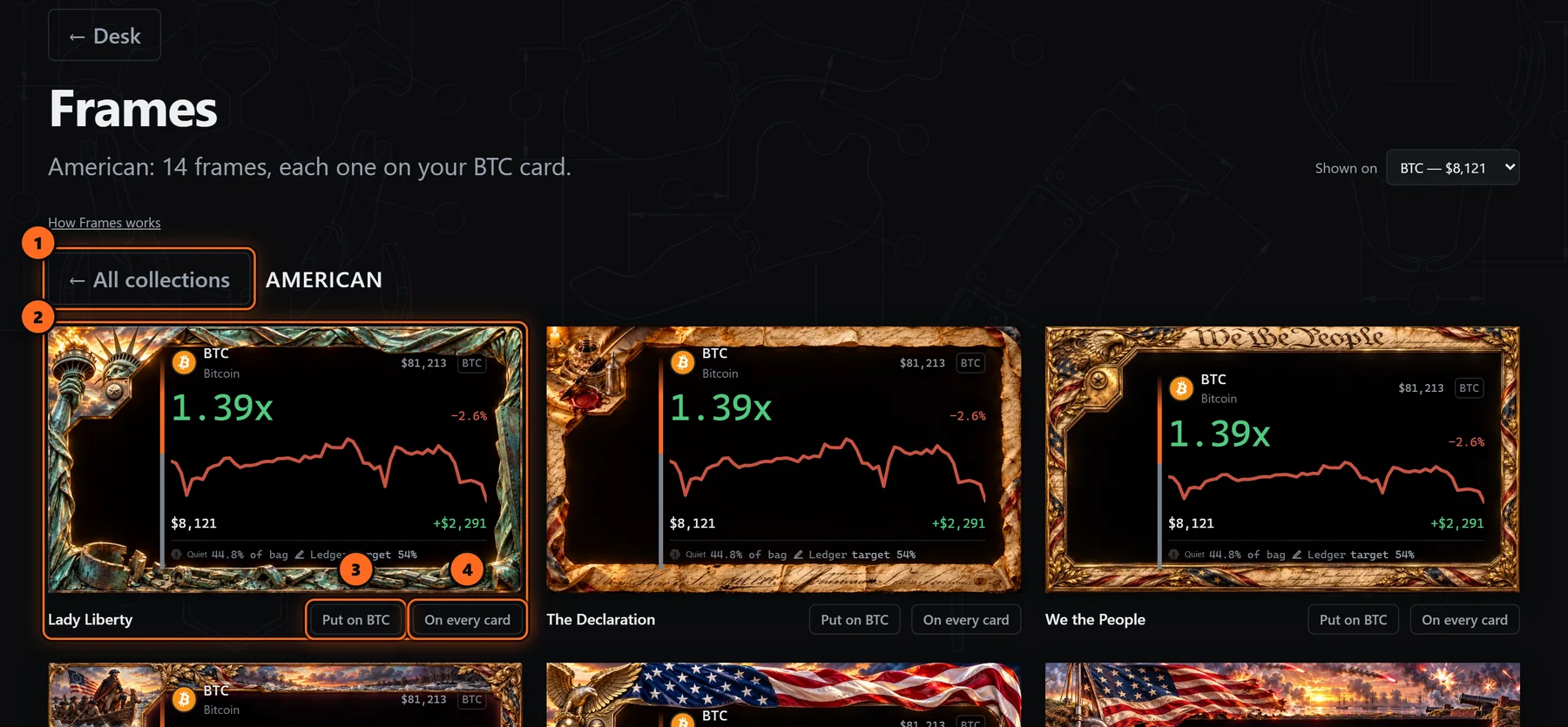
- All collections takes you back to the banners.
- A frame, on your card. Moving frames play right on the page.
- Put on this card: it keeps that frame whatever the coin does.
- On every card: the whole desk wears it.
To go back to Crib choosing, open the card's back and set Frame to Crib picks. Anyone can look through the frames and try one on a card of their own until Crib closes. Keeping them comes with the full desk, or buy one collection on its own in the Microsoft Store and it's yours for good.
The Effects switch at the bottom of the desk turns card effects on or off, and Motion chooses between full card animation and following your Windows setting.
Tax
What you realized each year, and what every figure rests on.
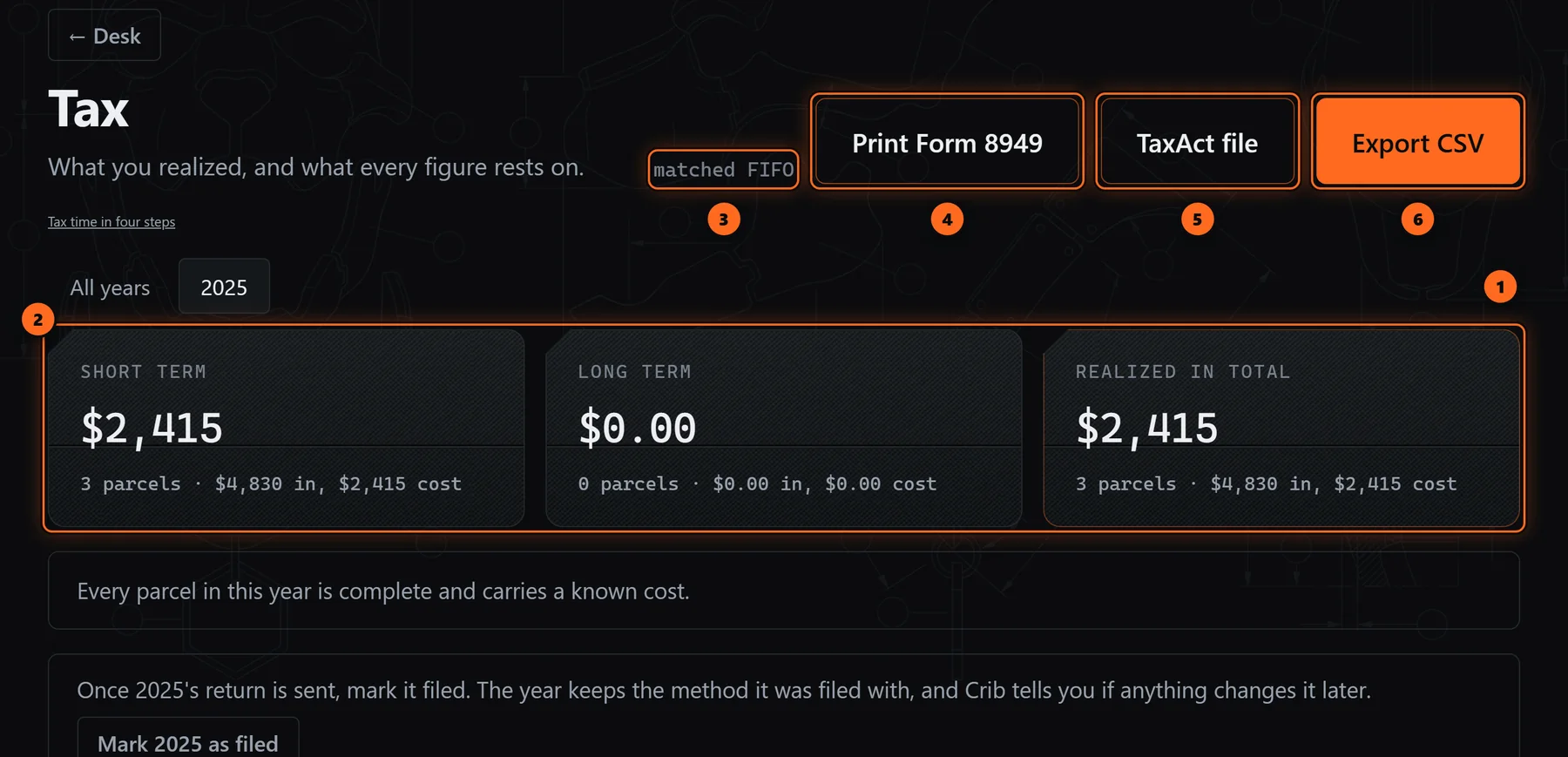
- Pick a year, or all years.
- Short term, long term and in total: gains and losses realized, with how many sales (parcels), what they brought in, and what they cost.
- The matching method used (FIFO, LIFO or HIFO), set at the bottom of the desk.
- Print Form 8949. Opens the IRS attached statement for that year, ready to print: the route every tax program accepts.
- TaxAct file. A file in TaxAct's own import layout. Crib tells you which Form 8949 boxes to tick after importing.
- Export CSV: every sale, one row each, for any other program or your accountant.
Under the totals, Crib says whether every sale in the year is complete and has a known cost. Once you have filed, Mark as filed, and Crib will tell you if anything later changes that year.
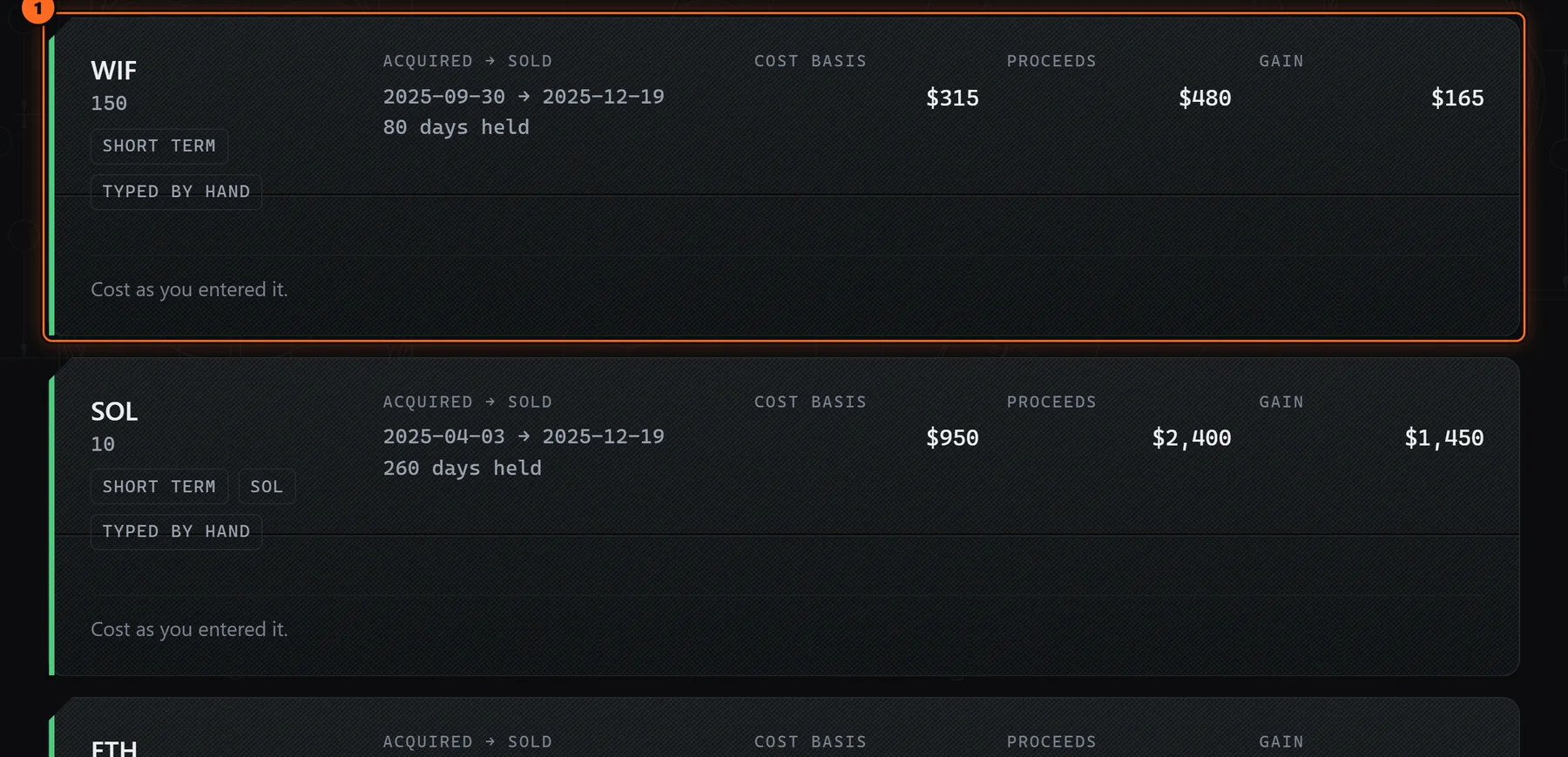
- Each sale with the buys it was matched against, the dates, and where each cost came from.
Also on the Tax page
- Rewards and airdrops. Coins that arrived free count as income the year they landed, and that value becomes their cost. Crib finds them and lets you log them, so a later sale doesn't look like more profit than you made.
- Check a 1099-DA. Got a Form 1099-DA from an exchange? Pick its year and Crib checks every line against your own records: what matches, what needs a correction, and what isn't in your records.
- Loss finder (this year only). What selling your losing positions today would do to the year's total.
Outside the United States
Crib is sold worldwide. Its tax figures follow US rules and are counted in US dollars; reports built on other countries' own rules are on the way, starting with the United Kingdom. If you live somewhere else, the Tax page says so at the top, the US-only forms (Form 8949, the TaxAct file and the 1099-DA check) are hidden, and "Before you sell" shows what a sale would bring in and what it cost, not a tax figure. Your tax office counts gains its own way, in its own currency at each sale's date, so use Crib as a complete record of every sale, not as your return.
Reading the report is free. Exporting it as a file is part of the full desk. Sales from 1 January 2025 are matched wallet by wallet, as the US rules now require. Crib is not tax advice; have a tax professional review anything before you file.
The bottom of the desk
Scroll to the end of the desk for the rest of Crib's tools and settings.

- Import CSV: paste or import buys.
- Export CSV: every lot you hold, as a spreadsheet in the same shape Import CSV reads.
- Tax: the Tax page.
- Snapshot: saves a picture of the desk as it stands.
- Back up: takes a copy of the desk now.
- Backup state: when the last copy was taken. Click it for Your data.
- Legacy Kit: a sheet for your family.
- Sample desk: look around a desk of made-up coins; yours is untouched.
- Licence, and whether this copy is the free or full desk.
- Matching: how sales are matched against buys. FIFO sells your oldest coins first, LIFO the newest, HIFO the most expensive.
- Country: where you live. What it changes.
- Shown in: the currency figures are shown in. Everything is stored in US dollars and converted for display.
- Updates: asks whether there is a newer Crib, only when you press it. The Microsoft Store copy is kept up to date by the Store.
- Telegram: a message with your desk.
- Alerts: a Windows notification when a target is reached.
- Intro: the opening film, on or off.
- Motion: full card animation, or follow your Windows setting.
- Effects: card effects on the desk, on or off.
- Guide: this page. It's also under Guide at the top of the desk.
- Report a problem: getting help.
Backups and moving computers
Everything Crib knows is in one file on your computer. Click the backup state at the bottom of the desk.
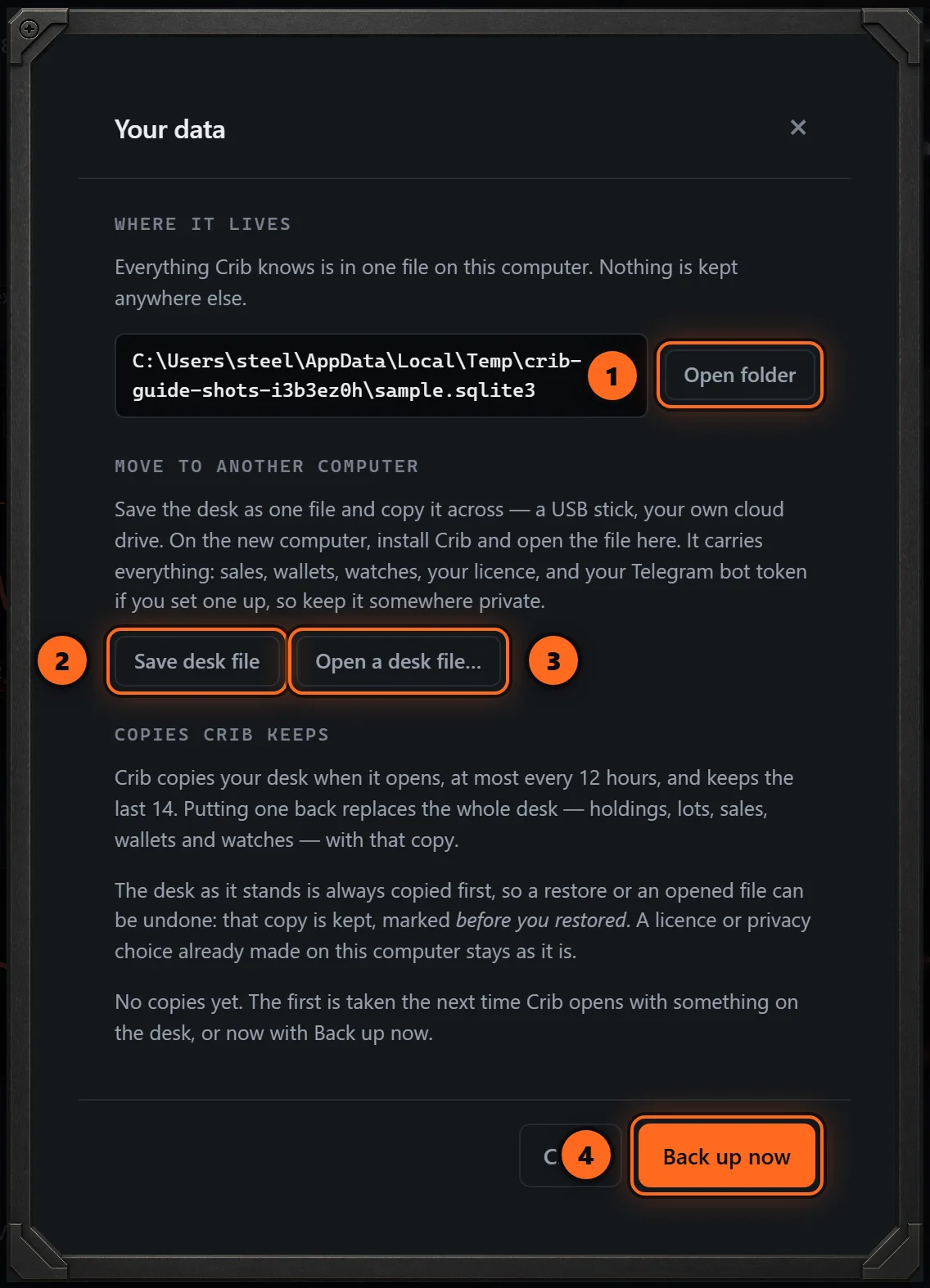
- Open folder shows where the desk file lives.
- Save desk file saves the whole desk as one file. Copy it to a USB stick or your own cloud drive.
- Open a desk file on the new computer (after installing Crib) brings everything across: holdings, sales, wallets, watches and your licence. It also carries your Telegram bot token if you set one up, so keep the file somewhere private.
- Back up now. Crib also copies the desk by itself when it opens, at most every 12 hours, and keeps the last 14. Any copy listed here can be put back.
Putting a copy back, or opening a desk file, first copies the desk as it stands, marked before you restored, so it can always be undone.
Legacy Kit
Coins are the one thing that can vanish completely. If nobody knows what you hold or where the recovery words are, it's gone. The Legacy Kit prints one sheet for whoever would have to deal with it: what you own, where each piece lives, and what someone who knows nothing about crypto should do first.
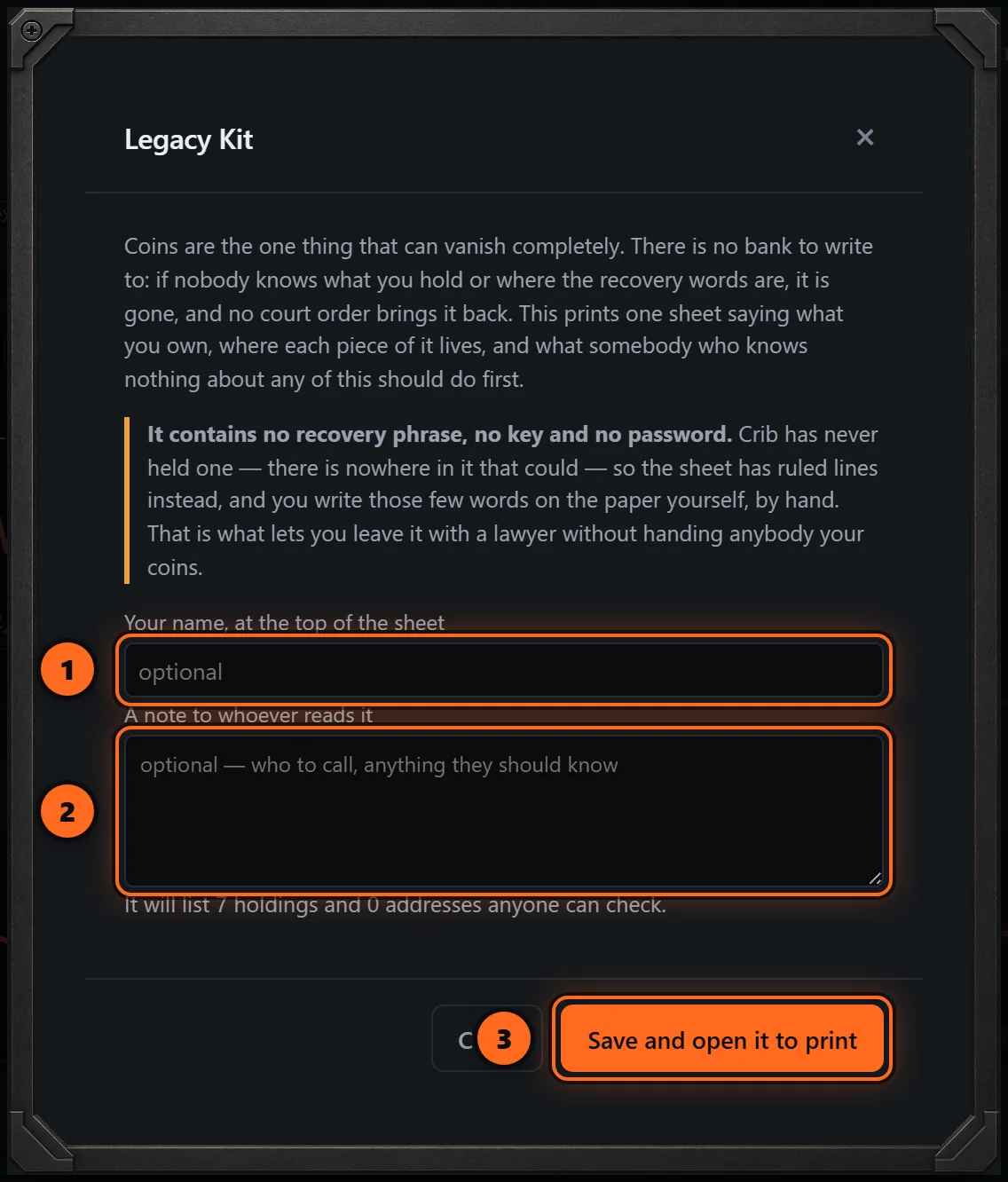
- Your name for the top of the sheet (optional).
- A note to whoever reads it: who to call, anything they should know (optional).
- Save and open it to print.
It never contains a recovery phrase, a key or a password. Crib has never held one. The sheet has ruled lines instead. On them you write, by hand, only where the recovery words are kept, never the words themselves. That's what lets you leave it with a lawyer without handing anyone your coins.
Telegram
The one feature that sends your desk off your computer: a short message with what the bag is worth, how it is doing, and any targets reached, sent to your own Telegram chat.
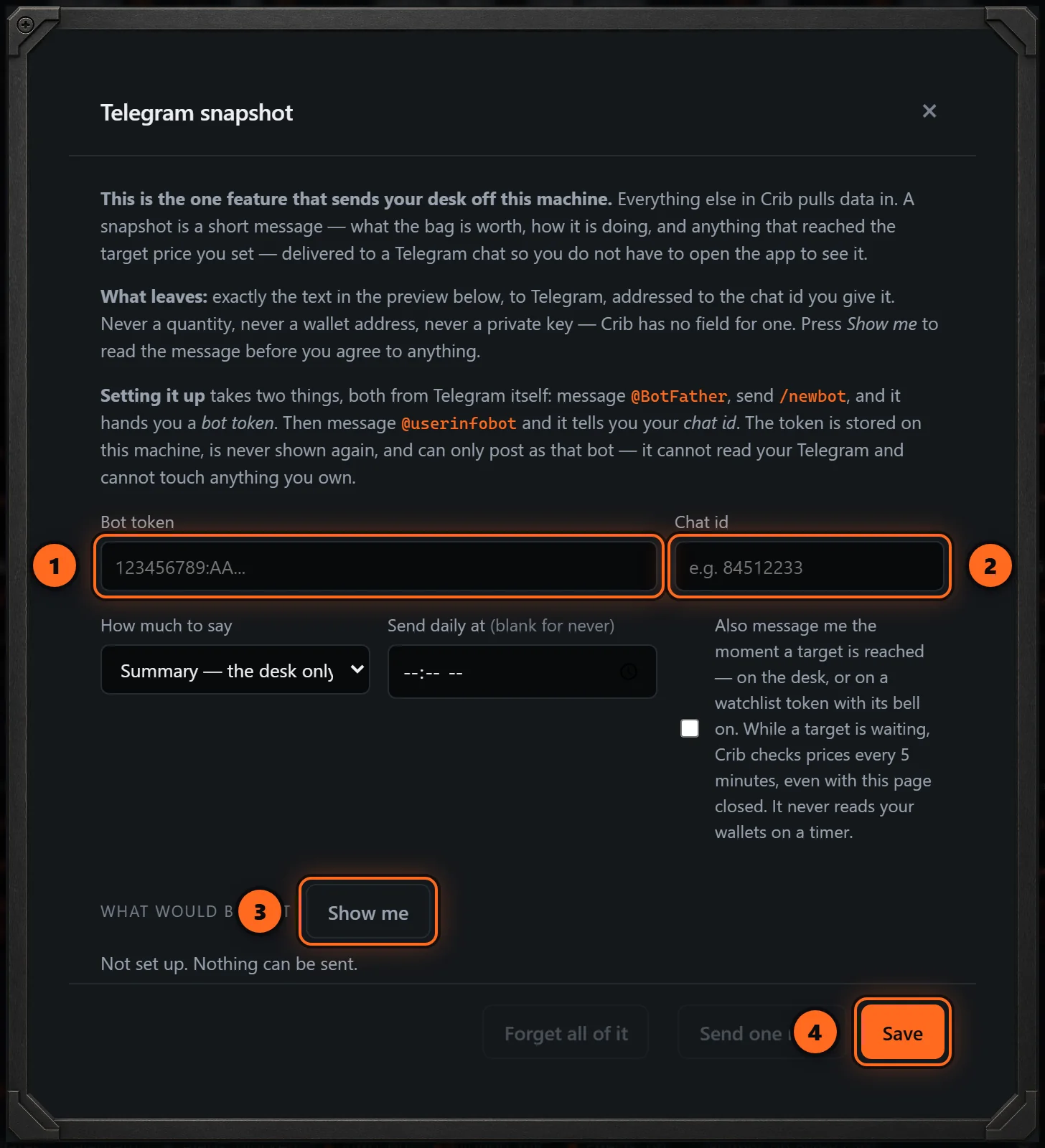
- Bot token. In Telegram, message
@BotFatherand send/newbot; it gives you the token. The token can only post as that bot. It can't read your Telegram or touch anything you own. - Chat id. Message
@userinfobotin Telegram and it tells you yours. - Show me previews exactly what would be sent, before you agree to anything. It never includes a quantity, a wallet address or a key.
- Save. Choose Summary or Full, a daily time, and whether to be messaged the moment a target is reached.
Send one now sends a message straight away; Forget all of it removes the token and settings.
Free and full desk
Crib is free to use. The full desk is $5.99 a month or $49.99 a year.
The free desk watches one wallet and three watchlist tokens, and lets you read the tax report but not export it. The full desk adds:
- Unlimited watched wallets, instead of one
- Unlimited watchlist tokens, instead of three
- The tax year exported as a file (the report itself is free to read)
- The Legacy Kit printout
- Card effects and frames on the desk
- Every chain added while it is current
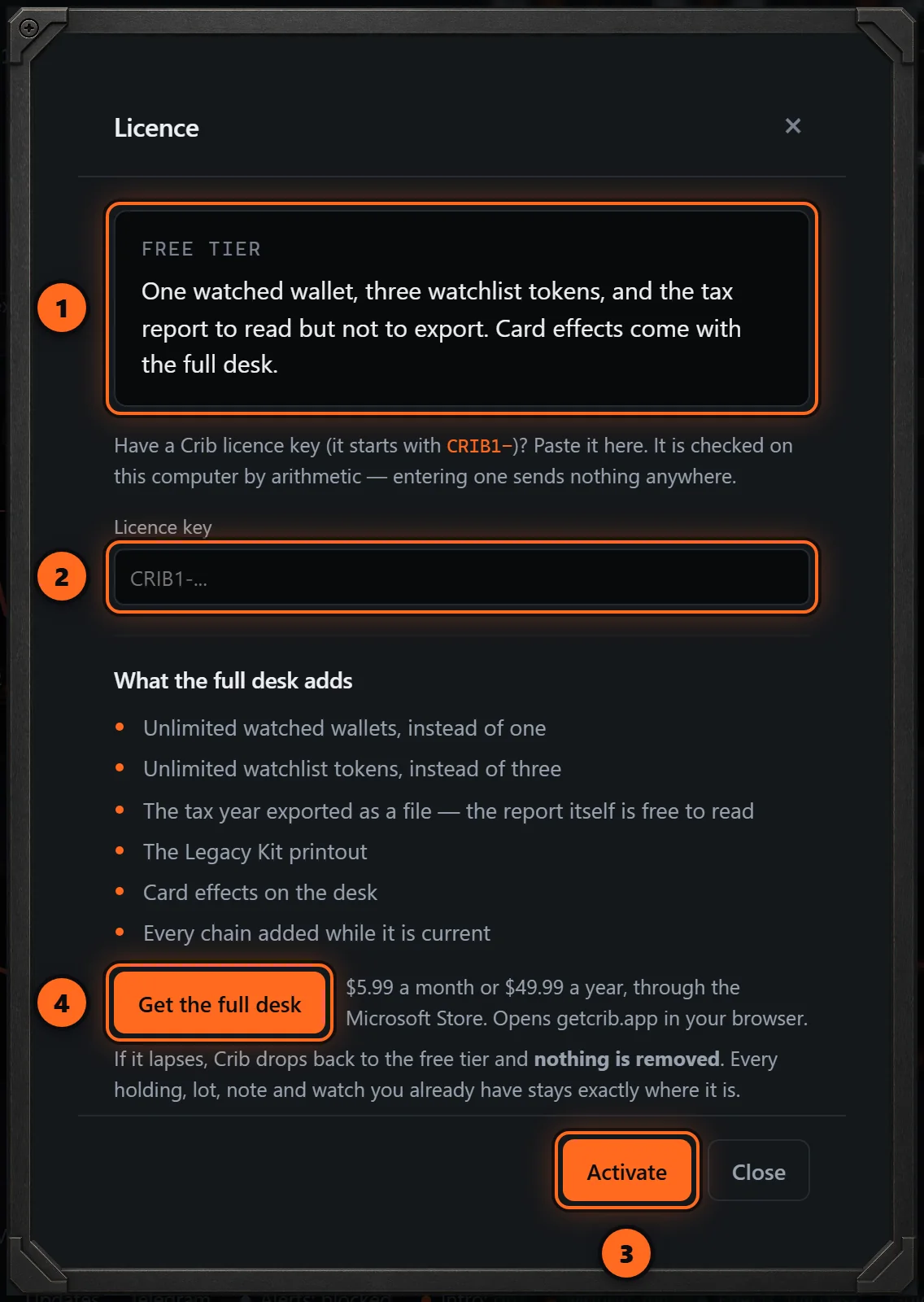
- Which tier this copy is on, in words.
- Licence key. Only for a Crib licence key (it starts with CRIB1-), such as a gift or a replacement.
- Activate. The desk switches to full straight away.
- Get the full desk. Crib Full is $5.99 a month or $49.99 a year, paid through the Microsoft Store. In the Store copy of Crib the two plans are buttons right on this sheet.
The Microsoft Store takes the payment, sends the receipt and handles refunds, and you manage or cancel the subscription there. Check now asks Windows again what you've bought. If a subscription lapses, Crib goes back to the free tier and nothing is removed: every holding, lot, note and watch stays exactly where it is, and frame packs you bought stay yours.
What leaves your computer
Crib keeps everything on your computer and has no account to sign in to. It never contacts anything on a timer. These are the times it does:
- Prices, when you open Crib or press Refresh, and Insights when you open it. These ask about coins, never about you or your wallets.
- Wallet reads (and the Yard and Guard Dog, which read the same way) send a wallet's public address to the services for that chain: only after you have agreed once, and only when a read happens. The Yard also fetches real items' pictures from wherever each item keeps them.
- Your purchases are asked of Windows on this computer, which already knows what you bought in the Microsoft Store: when Crib starts and when you press Check now. A Crib licence key is checked by arithmetic and sends nothing.
- Telegram, only if you set it up, gets exactly the message you previewed.
- Updates are asked for only when you press the button.
The full details are in the privacy policy.
Getting help
Something wrong? Press Report a problem at the bottom of the desk.
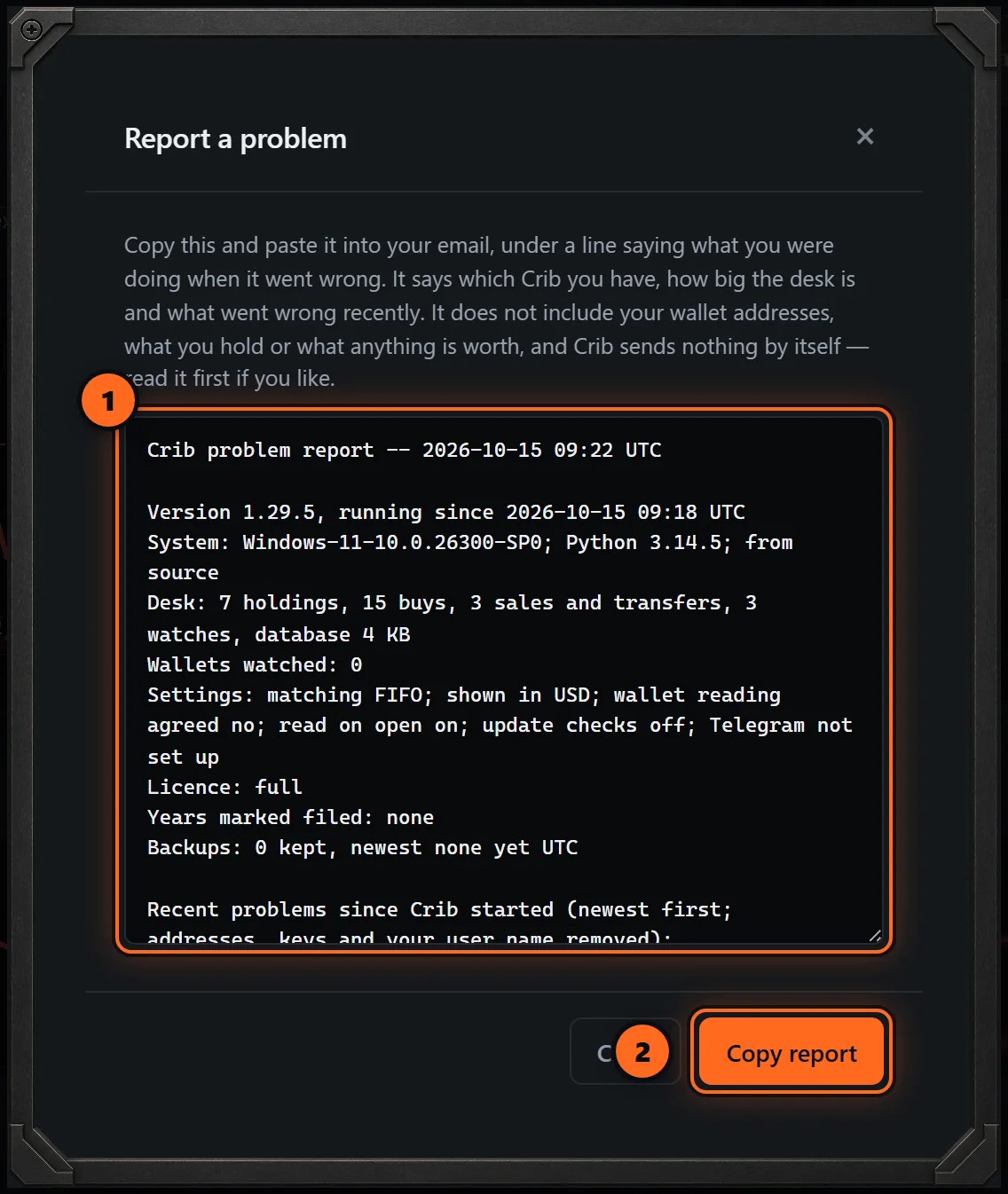
- The report says which Crib you have, how big the desk is, and what went wrong recently. It never includes your wallet addresses, what you hold, or what anything is worth. Read it first if you like.
- Copy report, then paste it into an email to woof@getcrib.app, under a line saying what you were doing when it went wrong. Crib sends nothing by itself.
Ideas and questions
Something you wish Crib did, something that confused you, or just what you make of it: email woof@getcrib.app. It goes straight to the person who builds Crib.
Follow Crib
New frame packs, short films and The Crib Sheet, Crib’s own show, go up on YouTube, TikTok and X.